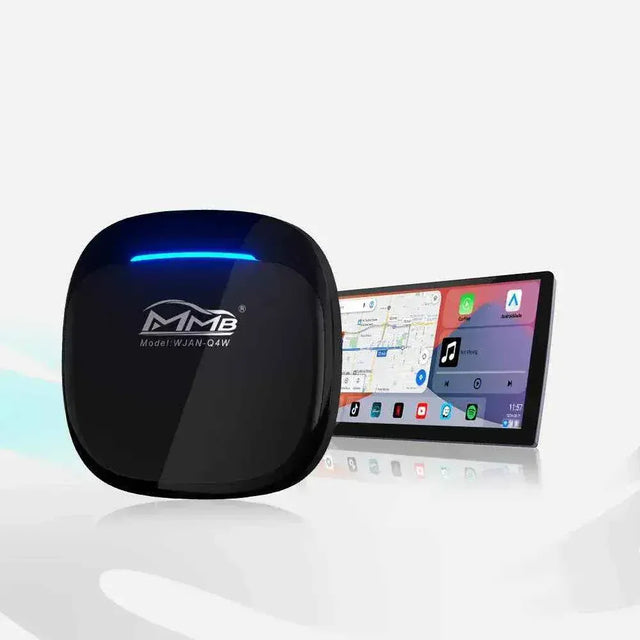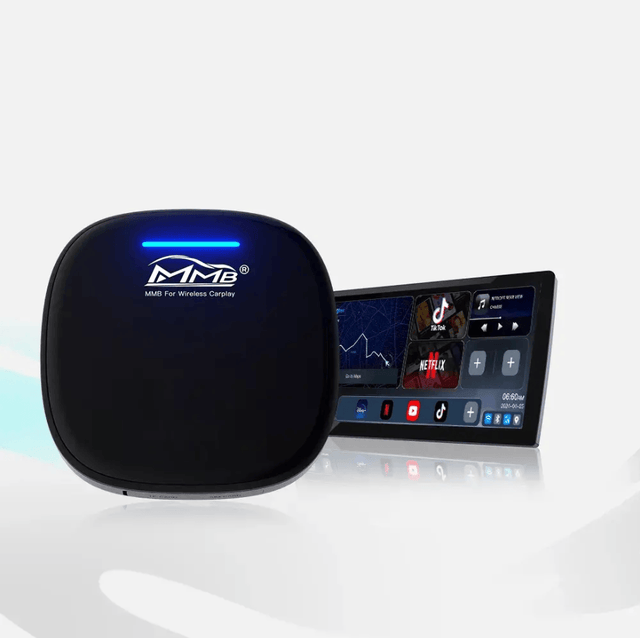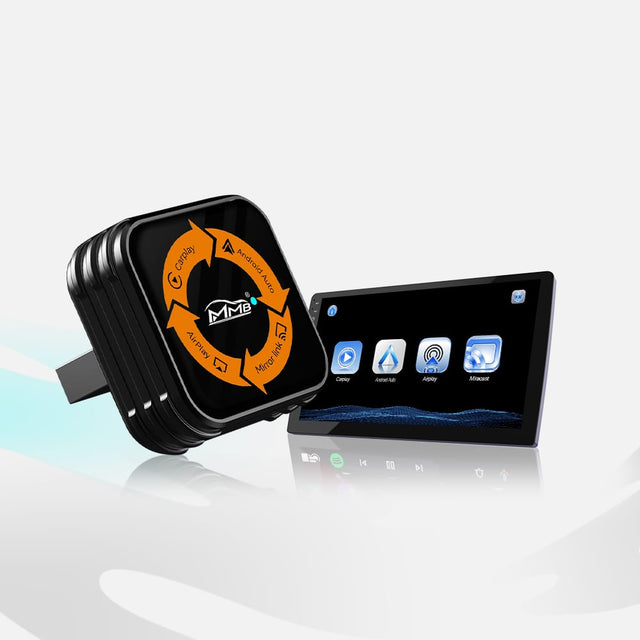

BMW AI Box Audio Delay: How to Fix Audio and Video Sync Issues
What Is BMW AI Box Audio Delay?
BMW AI Box audio delay is a common issue that some BMW owners experience when watching videos through YouTube, Netflix, Disney+, or other multimedia apps on an AI Box.
The problem usually appears as:
- Audio playing later than the video
- Lip-sync issues when watching videos
- Video running smoothly while sound lags behind
- Audio and video gradually becoming out of sync
Although this issue can be frustrating, the good news is that BMW AI Box audio delay is usually caused by software settings rather than hardware defects. In most cases, the issue can be fixed in just a few minutes.
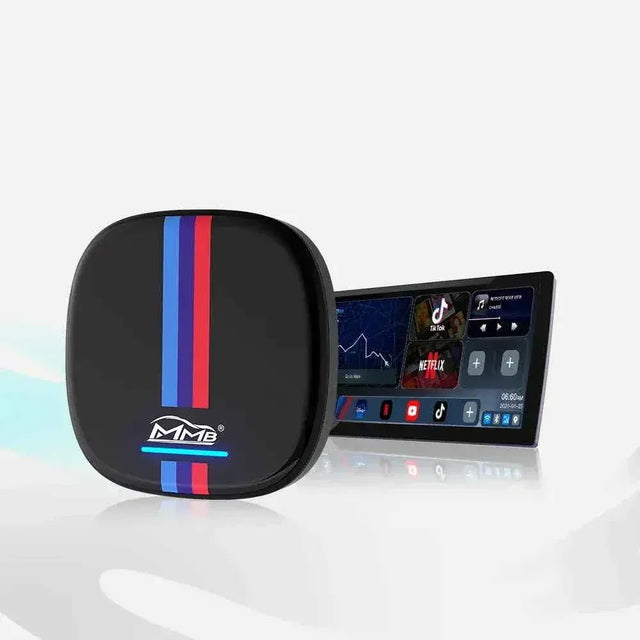
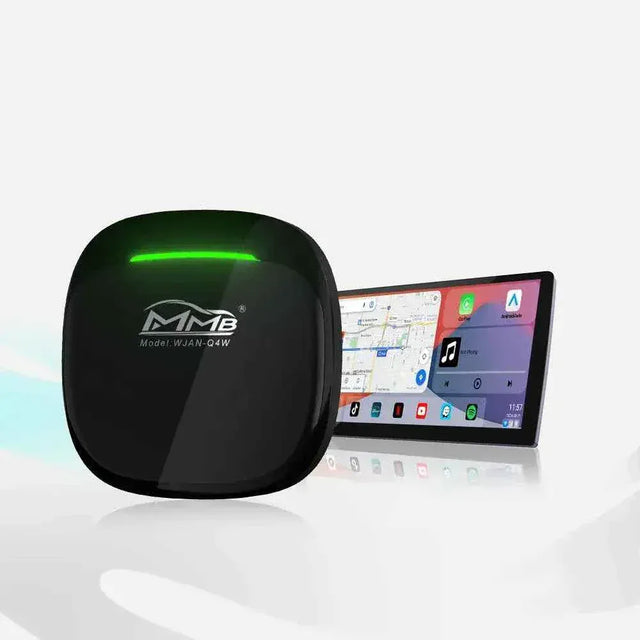
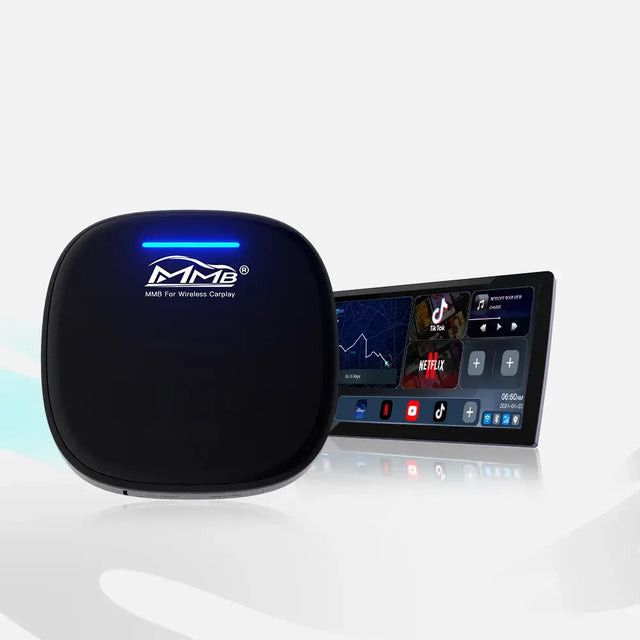
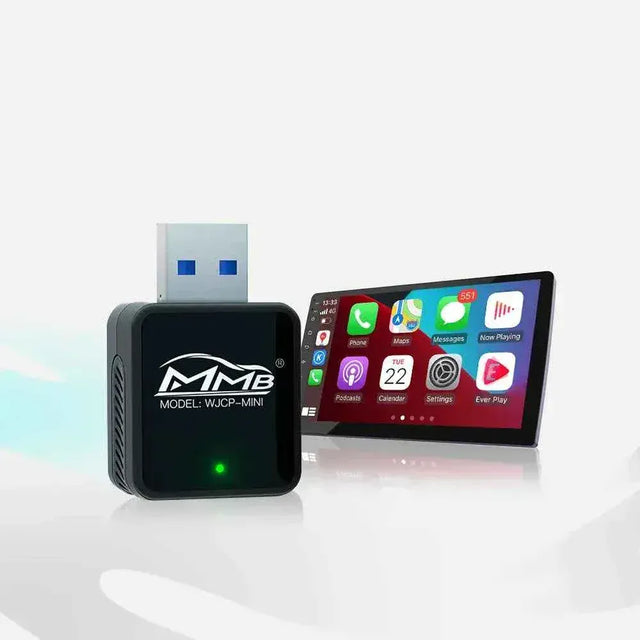
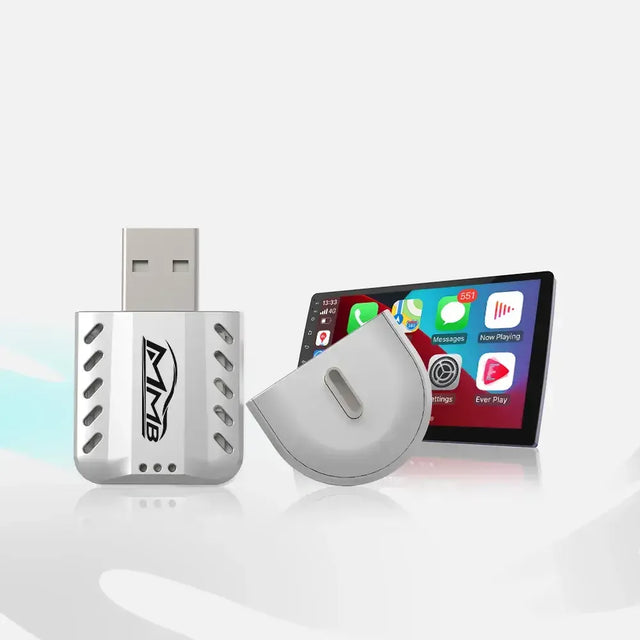
If you are using an MMB BMW Multimedia Box, this guide will show you the causes of the issue and the easiest solution.
You can learn more about the product here:
Why Does BMW AI Box Audio Delay Happen?
To understand BMW AI Box audio delay, it's important to know how an AI Box works.
A BMW AI Box is essentially an Android-based multimedia system that operates on top of the factory BMW iDrive system. It communicates with:
- The BMW head unit
- Bluetooth audio
- Wireless CarPlay
- Wi-Fi transmission
- Streaming applications such as YouTube and Netflix
Because audio and video are processed separately and then synchronized, even a slight delay in Bluetooth transmission or audio processing can result in sound and video becoming out of sync.
Bluetooth Audio Latency
Bluetooth latency is one of the most common reasons for BMW AI Box audio delay.
When you watch a YouTube video:
- The AI Box decodes the video.
- The image is sent directly to the BMW display.
- Audio is transmitted through Bluetooth or the original BMW audio system.
- The BMW head unit decodes and outputs the sound.
This process introduces a small delay, which can become noticeable during video playback.
According to Wikipedia, Bluetooth audio latency varies depending on the codec and hardware:
https://en.wikipedia.org/wiki/Bluetooth
Streaming App Compatibility
Another reason for BMW AI Box audio delay is application optimization.
Different streaming apps use different decoding methods. Popular apps include:
- YouTube
- Netflix
- Disney+
- Hulu
Some versions of these apps may not be perfectly optimized for Android-based car systems.
Google explains that media synchronization depends heavily on hardware acceleration and software optimization:
https://developer.android.com/media
If hardware decoding or audio buffering is not properly optimized, sound and video may become unsynchronized.
Wireless CarPlay and Android Auto
Wireless CarPlay and Android Auto use a combination of:
- Bluetooth pairing
- Wi-Fi transmission
- Audio decoding
- Video rendering
Apple explains that wireless CarPlay relies on both Bluetooth and Wi-Fi technologies:
https://www.apple.com/ios/carplay
Because multiple wireless technologies are involved, a small delay is normal. However, if the delay becomes obvious, adjusting the system settings can usually solve the issue.
The Easiest Way to Fix BMW AI Box Audio Delay
If you are using an MMB BMW Multimedia Box, there is a built-in setting designed specifically to solve BMW AI Box audio delay.
Follow these steps:
Step 1: Open Settings
On the MMB BMW Box, go to:
Settings → More Settings
Step 2: Change the Audio Mode
Find:
Audio Mode
Switch it to:
Mode 3
Mode 3 is specifically optimized for improving audio synchronization and reducing Bluetooth latency.
Step 3: Adjust the Audio Delay Value
After selecting Mode 3, choose an appropriate delay value.
Recommended values:
- 800 ms – for minor audio delay
- 1000 ms – recommended for most BMW vehicles
- 1200 ms – for severe audio and video sync issues
You can test different values until the sound and video are perfectly synchronized.
Step 4: Restart the BMW AI Box System
After completing the settings:
- Return to the factory BMW iDrive system.
- Exit the MMB BMW Box completely.
- Re-enter the MMB BMW Box system.
The new settings will take effect immediately.
In most cases, this method completely resolves the BMW AI Box audio delay issue.
Why Does Mode 3 Work?
Many users wonder why changing the audio mode solves the problem.
The reason is simple.
Mode 3 adjusts:
- Audio output buffering
- Bluetooth transmission timing
- Audio synchronization algorithms
- System latency compensation
Instead of changing the video speed, the system intelligently delays the audio signal to match the video.
This creates perfect synchronization between:
- YouTube videos
- Netflix movies
- Disney+ streaming
- Screen mirroring content
As a result, the BMW AI Box audio delay issue disappears.
Additional Tips to Improve Audio Synchronization
Besides changing the audio mode, there are several other ways to improve synchronization.
Keep the Firmware Updated
Firmware updates often include:
- Bluetooth improvements
- Audio optimization
- Video decoding enhancements
- Bug fixes
If you are using the MMB BMW Multimedia Box, make sure you are using the latest firmware version.
Update Streaming Applications
Outdated apps can sometimes cause synchronization issues.
Make sure to update:
- YouTube
- Netflix
- Disney+
- Spotify
After updating:
- Clear the app cache
- Restart the system
- Test video playback again
Close Background Applications
Running too many applications at the same time may affect performance.
To reduce the chance of BMW AI Box audio delay:
- Close unused apps
- Disable split-screen mode
- Restart the device regularly
- Avoid running multiple streaming apps simultaneously
This reduces CPU usage and improves multimedia performance.
Conclusion
BMW AI Box audio delay is a common issue that can occur when watching YouTube, Netflix, Disney+, or other multimedia content on an AI Box.
Fortunately, if you are using the MMB BMW Multimedia Box, the solution is simple:
- Go to Settings
- Open More Settings
- Change Audio Mode to Mode 3
- Select a delay value between 800–1200 ms
- Return to the factory BMW system and re-enter the MMB BMW Box
This setting effectively solves audio and video synchronization issues for most BMW vehicles.
If you are looking for a dedicated BMW multimedia upgrade solution, check out:
MMB BMW Multimedia Box
https://carplaymmb.com/products/mmb-bmw-multimedia-box
FAQ
Why is my BMW AI Box audio delayed?
The most common causes are Bluetooth latency, streaming app optimization, or wireless audio transmission delays.
How do I fix BMW AI Box audio delay?
Go to Settings → More Settings, switch Audio Mode to Mode 3, select a delay value between 800 and 1200 ms, then restart the MMB BMW Box system.
What is the best delay setting for BMW AI Box?
Most BMW owners find 1000 ms to be the best balance. However, you can test 800 ms or 1200 ms depending on your vehicle and preferences.
Does Bluetooth cause BMW AI Box audio delay?
Yes. Bluetooth audio transmission introduces latency, especially when streaming videos or using wireless CarPlay.
Will changing Audio Mode to Mode 3 affect music playback?
No. Mode 3 is designed to improve synchronization during video playback and generally does not negatively affect music or navigation audio.
How to Watch Netflix While Charging Your Car: A Complete Guide
Tired of the Limited Polestar 4 System? Upgrade Your In-Car Entertainment with MMB Wireless CarPlay – Watch YouTube & Netflix Easily
Related Posts

BMW CarPlay Disconnecting at the Same Place? Find Out Why Before You Buy a Fix

BMW CarPlay Apps Missing? Why Your Favorite App Is Not on the Screen

BMW CarPlay Siri Not Working? 7 Fixes for a Frustrating Issue

CarPlay Wrong Location? Find the Cause Before You Replace Anything

My Car Has a Rear Screen. Why Can’t My Kids Watch Video While I Use Navigation?

BYD Wireless CarPlay AI Box: Worried It Won’t Work? Check This First

MMB BMW AI Box Before and After: What Actually Changes on Your Factory Screen?