
How to Watch Netflix While Charging Your Car: A Complete Guide
Waiting at a charging station is now a normal part of electric vehicle ownership. Sometimes there is just enough time to answer a few messages or buy a coffee. On longer stops, however, you may have 20 minutes or more to fill before getting back on the road.
That raises a practical question: can you watch Netflix while charging your car?
The short answer is yes, provided the vehicle is safely parked and you have compatible equipment. Apple CarPlay does not natively display Netflix, but a compatible CarPlay AI Box can add an Android-based multimedia interface to supported factory screens.
Here is how the setup works, what you need, and how to make charging stops more enjoyable without compromising safety.
Can You Watch Netflix While Charging Your Car?
You can watch Netflix on a compatible car display while the vehicle is parked and charging. The exact method depends on the entertainment system installed in the car.
Some modern electric vehicles offer native streaming applications. Other cars may support screen mirroring or an aftermarket multimedia system. If your vehicle has factory-wired CarPlay but no built-in Netflix app, a CarPlay AI Box may offer another solution.
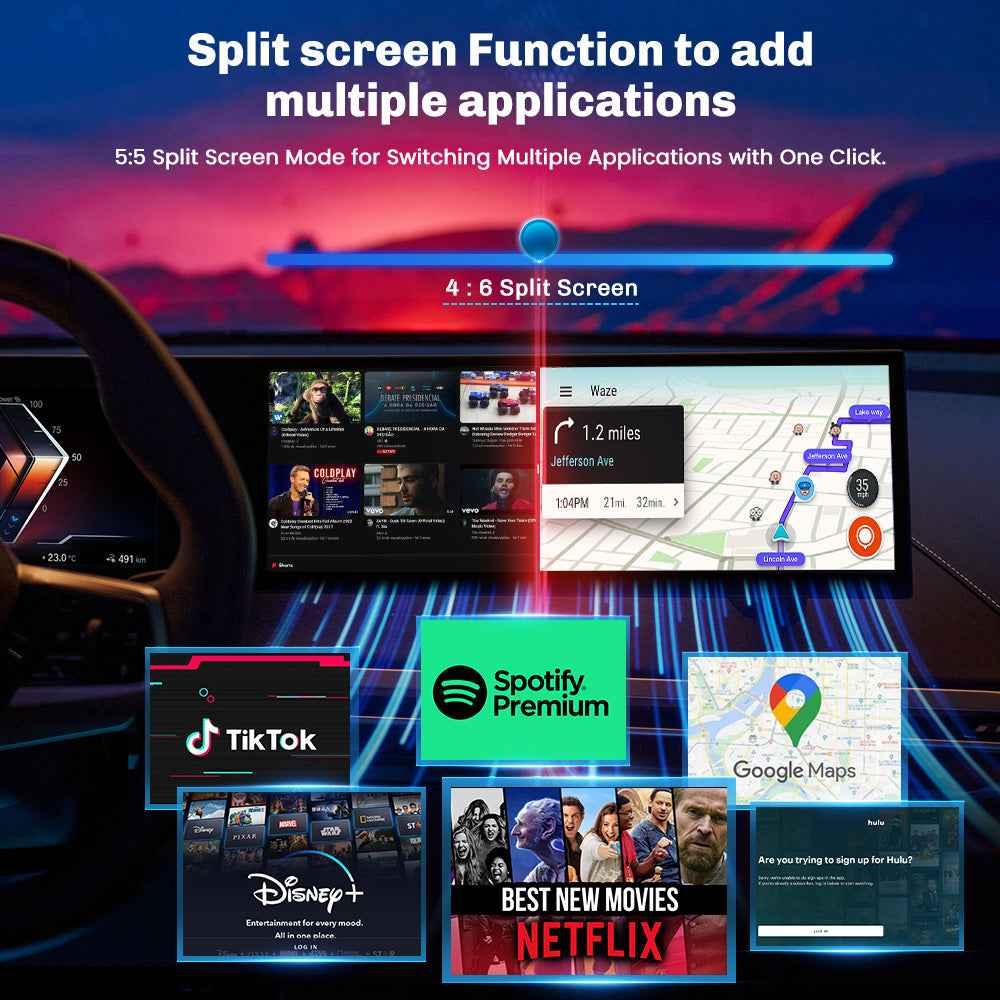
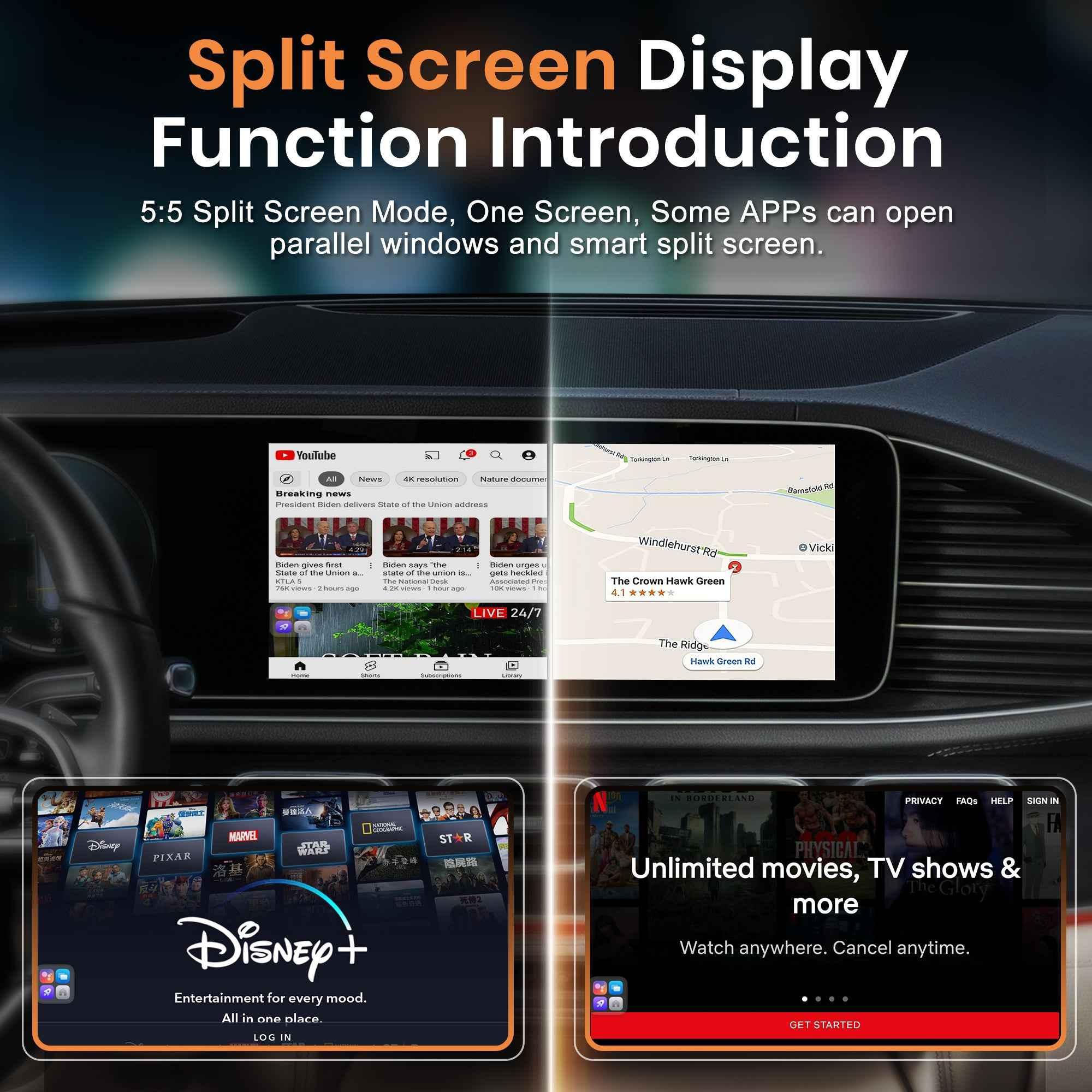
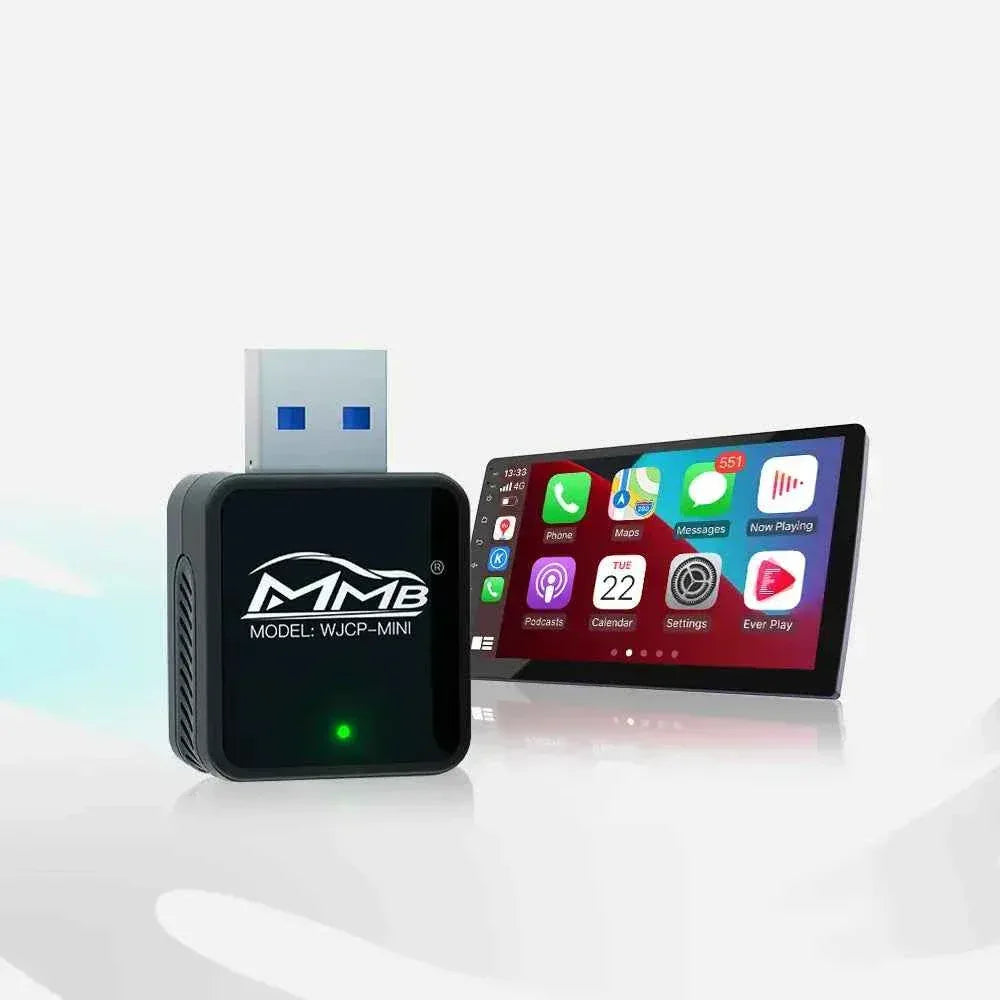
A CarPlay AI Box connects to the vehicle's CarPlay USB port and launches its own Android-based interface. From there, compatible applications such as Netflix and YouTube can run on the factory display.
The important distinction is that Netflix is not running inside standard Apple CarPlay. Apple limits CarPlay to supported categories such as navigation, audio, communication, and selected driving-related applications. An AI Box adds a separate multimedia environment while preserving access to CarPlay.
Safety Comes Before Entertainment
Only watch video when your car is legally and safely parked. Never watch Netflix, YouTube, live sports, or other video content while driving.
The National Highway Traffic Safety Administration warns that visual, manual, and cognitive distractions can take a driver's attention away from driving. NHTSA's driver-distraction guidelines specifically identify video content unrelated to driving as a task that can interfere with safe vehicle operation.
Local rules concerning front-seat displays and video playback vary. Check the laws that apply in your country, state, or region.
A simple rule works everywhere: finish the episode, close the application, and return to the normal navigation or CarPlay screen before moving the vehicle.
What You Need to Watch Netflix at a Charging Station
A Compatible Factory CarPlay System
Most USB CarPlay AI Boxes require a vehicle that already supports factory-wired Apple CarPlay.
Having Bluetooth or standard USB audio is not necessarily enough. The vehicle's USB port must be able to launch wired CarPlay when an iPhone is connected with a cable.
You can check compatibility by:
- Connecting an iPhone to the vehicle's USB port
- Looking for a CarPlay or smartphone symbol near the port
- Checking the vehicle owner's manual
- Opening the infotainment connectivity menu
- Asking the device seller to verify your model and year
Apple's official instructions explain how to connect an iPhone to CarPlay. Test the original CarPlay connection before adding another device.
Some cars only provide wireless CarPlay. These vehicles may require a specialized product rather than a standard wired-CarPlay AI Box. BMW and some newer electric vehicle platforms are common examples.
A CarPlay AI Box
A basic wireless CarPlay adapter only removes the USB cable between the phone and car. It normally cannot install Android applications or display Netflix.
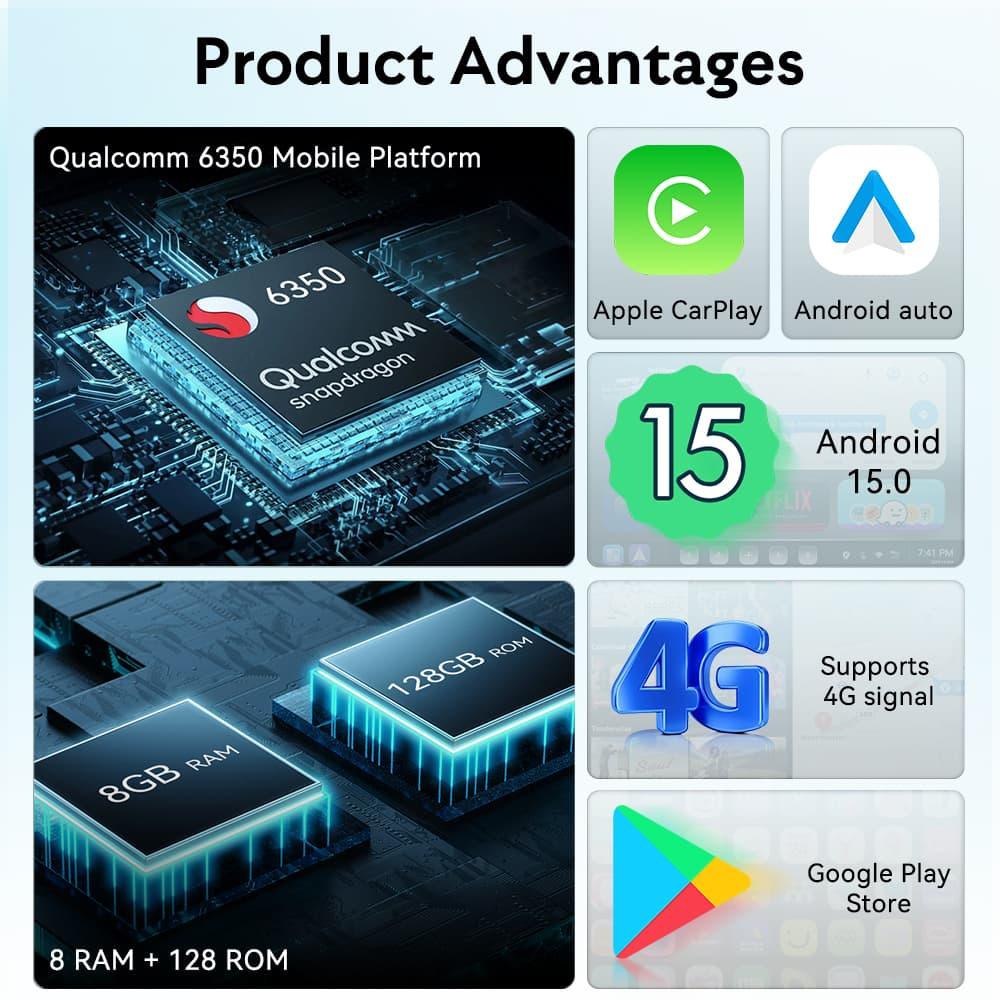
To stream video, look for a multimedia AI Box with:
- An Android operating system
- Netflix and YouTube support
- Wi-Fi or mobile-hotspot connectivity
- Sufficient memory and storage
- Compatibility with the vehicle's controls
- Support for the factory screen resolution
- Reliable firmware and technical support
The MMB AI Media Box collection includes multimedia devices designed for vehicles with factory-wired CarPlay.
For drivers comparing current hardware, the MMB Max 5.0 AI Box supports wireless CarPlay, wireless Android Auto, Netflix, YouTube, and additional Android applications.
BMW owners should use a system designed for their infotainment platform. The MMB BMW AI Box is intended for compatible BMW iDrive systems and should be checked against the exact vehicle configuration before ordering.
An Internet Connection
Streaming Netflix requires an internet connection unless compatible content has already been downloaded for offline viewing.
Common connection options include:
- A smartphone mobile hotspot
- A portable Wi-Fi hotspot
- Built-in cellular support on compatible AI Box models
- Public Wi-Fi at the charging station
A phone hotspot is usually the simplest option. Turn on the hotspot, connect the AI Box through its Wi-Fi settings, and open Netflix.
Public charging-station Wi-Fi may be slower or less secure. Avoid entering sensitive information over an unfamiliar network, and use your phone's connection when possible.
How to Watch Netflix While Charging Your Car
Step 1: Park and Start Charging
Park correctly, shift into Park, engage the parking brake if appropriate, and connect the charging cable.
Confirm that charging has started before setting up entertainment. This avoids having to leave the car halfway through an episode because the connector was not properly seated.
Charging time varies by battery size, state of charge, vehicle capability, temperature, and charger output. The U.S. Department of Energy explains that these factors can all affect how long a charging session takes.
Step 2: Connect the AI Box
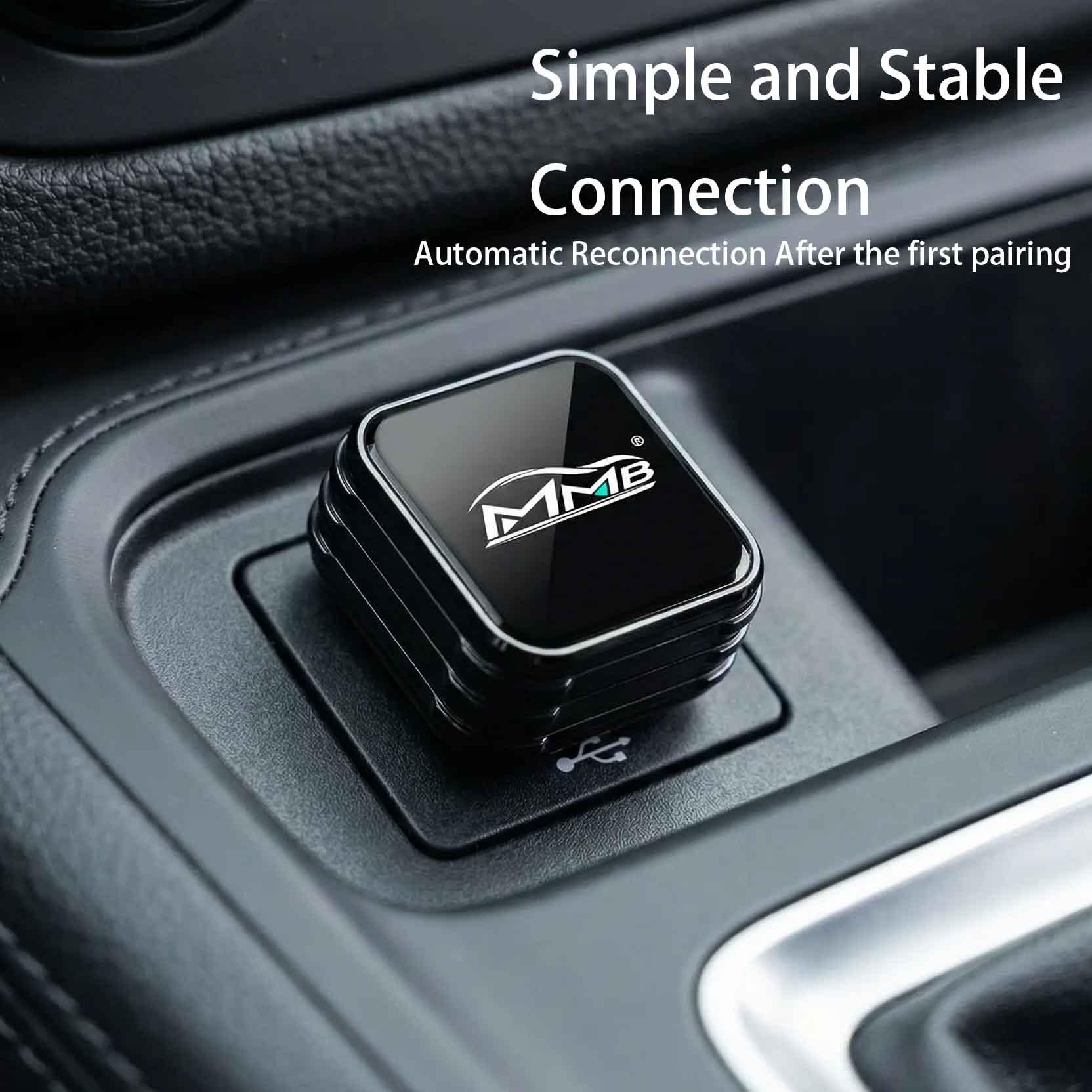
Plug the AI Box into the USB port normally used for wired CarPlay. Some cars have multiple USB ports, but only one may support data and CarPlay.
Allow the device to start. Its home screen should appear on the factory display after the car recognizes it.
If nothing happens, check that:
- You are using the correct USB port
- The cable supports data, not only charging
- Wired CarPlay is enabled
- The AI Box is compatible with the vehicle
- The device is receiving enough USB power
Step 3: Connect to the Internet
Open the AI Box Wi-Fi settings and select your phone's hotspot or another trusted network.
For a phone hotspot, keep the phone connected to power during longer sessions. Streaming video and sharing a data connection can use battery power quickly.
Step 4: Open Netflix
Launch Netflix from the AI Box home screen or application menu. Sign in to your own account and choose a program.
Availability, playback resolution, downloads, and sign-in behavior can vary according to the Netflix plan, region, application version, device certification, and digital rights management requirements.
Test the setup at home before relying on it for a trip. Application providers can change compatibility requirements independently of the AI Box manufacturer.
Step 5: Exit Before Driving
When charging is complete, stop playback and close Netflix. Switch back to CarPlay or the original infotainment system before moving the vehicle.
Disconnect the charging cable, store it properly, check your surroundings, and begin navigation only after the entertainment screen has been dismissed.
How Much Mobile Data Does Netflix Use?
Video streaming can consume a meaningful amount of mobile data. The exact amount depends on playback quality, compression, screen resolution, and the selected Netflix data settings.
To reduce consumption:
- Choose a lower video-quality setting
- Avoid unnecessary high-resolution streaming on a small car screen
- Monitor your mobile-plan allowance
- Use trusted Wi-Fi when available
- Download compatible programs before leaving home
- Disable automatic application updates over the hotspot
Netflix provides official instructions for downloading supported movies and shows. Download availability depends on the title, device, Netflix plan, and licensing conditions.
Not every AI Box will support offline downloads in the same way as a certified Android phone or tablet. Test the feature before a long journey, and keep a backup entertainment option on your phone or tablet.
Is an AI Box Better Than Using a Phone or Tablet?
A phone or tablet is often the easiest way to watch a program while parked. It requires no installation and does not depend on vehicle compatibility.
An AI Box becomes attractive when you want a more integrated experience. It uses the existing factory display, receives power from the car, and avoids adding a separate tablet mount to the dashboard.
Benefits of a CarPlay AI Box
- Uses the original vehicle screen
- Reduces loose devices and visible cables
- Can add wireless CarPlay and Android Auto
- May support multiple multimedia applications
- Retains access to the factory infotainment system
- Can be useful during charging, camping, or long rest stops
Reasons to Use a Tablet Instead
- Larger screen for rear-seat passengers
- Easier to move between vehicles
- Wider application certification
- No need for factory-wired CarPlay
- Passengers can use it without occupying the central display
The best option depends on who is watching and how often the vehicle is used for long charging stops.
Other Ways to Use Your Charging Time
Netflix is only one way to make a charging break useful. Depending on the length of the stop, you could also:
- Listen to an audiobook or podcast
- Plan the next section of the route
- Check nearby restaurants or restrooms
- Review the charging status
- Make a hands-free call while parked
- Watch a short educational video
- Play music through the factory audio system
- Take a walk and stretch
- Organize photos from the trip
- Answer messages before driving again
For longer journeys, the CarPlayMMB guide to road trip essentials and AI Box entertainment offers more preparation ideas.
Choosing the Right AI Box for Your Car
Do not choose a product based only on processor specifications or the Android version. Start with vehicle compatibility.
Before purchasing, confirm:
- Vehicle make, model, and production year
- Whether the car has wired or wireless factory CarPlay
- USB-A or USB-C connection
- Screen type and resolution
- Touchscreen, rotary controller, or touchpad operation
- Available USB power
- Regional application compatibility
- Hotspot or SIM requirements
- Return and support terms
If you only want automatic wireless CarPlay and do not need video applications, a simpler adapter may be more economical. You can compare those options in the MMB Wireless Adapter Series.
If Netflix, YouTube, Android applications, and a multimedia home screen are important, choose an AI Box rather than a basic wired-to-wireless converter.
Make Charging Stops Feel Shorter
The ability to watch Netflix while charging your car can turn an ordinary wait into a useful entertainment break. A short episode fits naturally into many public charging sessions, while a movie can make a longer stop more comfortable during a road trip.
The key is selecting compatible equipment, preparing a reliable internet connection, and treating video as parked entertainment only.
Test the system before traveling, keep a charging cable for your phone, and download backup content where supported. Once charging is complete, close every video application and return your full attention to the road.
Frequently Asked Questions
Can I watch Netflix through normal Apple CarPlay?
No. Netflix is not a standard Apple CarPlay application. A compatible Android-based CarPlay AI Box or a vehicle with native streaming support is required to display Netflix on the factory screen.
Can I watch Netflix while my electric car is charging?
Yes, if the car is safely parked, local laws permit it, and your infotainment system or AI Box supports Netflix. Stop playback before driving.
Does a CarPlay AI Box work in every car?
No. Most standard AI Boxes require factory-wired CarPlay. Compatibility depends on the vehicle, model year, USB port, infotainment system, and product design.
Does an AI Box need a SIM card?
Not necessarily. Many AI Boxes can connect to a smartphone hotspot or Wi-Fi network. Some models also support a SIM card for an independent data connection.
Can I download Netflix movies to a CarPlay AI Box?
It may be possible on some devices, but availability depends on the Netflix application, subscription plan, title, storage, certification, and digital rights requirements. Test downloads before traveling.
How much data will Netflix use during charging?
Data use varies according to video quality and the length of viewing. Lowering playback quality and downloading content over home Wi-Fi can reduce mobile-data consumption.
Can passengers watch Netflix while the car is moving?
The safest recommendation is to use video only while the vehicle is parked. Front-display video can distract the driver and may be restricted by local law.
Will an AI Box remove the original CarPlay system?
Normally, no. A compatible AI Box adds another interface and should allow users to switch back to CarPlay or the factory infotainment system.

Best AI Box for BYD, POLESTAR 4 and DENZA D9 in 2026
BMW AI Box Audio Delay: How to Fix Audio and Video Sync Issues
Related Posts

Afraid of BMW MMB Box Battery Drain? What BMW Drivers Should Know Before Parked Streaming

Worried MMB Too Complicated? 7 Easy Things First-Time Users Should Know

Worried Your Car Screen Is Too Old for MMB? 7 Signs It May Still Work

Worried About MMB Mobile Hotspot? 7 Things Drivers Should Know Before Streaming

Parked Car Between Appointments: 7 Reasons MMB Makes Waiting Feel Better

Long Drive Alone: Why the Car Feels Different When Nobody Is Beside You

MMB AI Box Buying Guide: 7 Checks Before You Order