
BMW CarPlay Apps Missing? Why Your Favorite App Is Not on the Screen
Your iPhone connects to your BMW, and Apple Maps appears on the factory screen. But the music, navigation, or other app you want is nowhere to be found. It works on your phone, so why is it missing from the car?

If BMW CarPlay apps missing is the problem you searched for, do not reset iDrive or buy a new device yet. A missing app may be hidden in your CarPlay layout, installed on a different phone, or unavailable through CarPlay on your particular setup. You can check these possibilities in order and find out which one actually applies.
BMW CarPlay Apps Missing? Confirm the Right Phone Is Connected
Start with the simplest explanation: your BMW may have connected to another iPhone. This often happens in a car shared by two drivers. CarPlay displays apps from the connected phone, not every phone previously paired with the vehicle.

While parked, check the connected-device name in iDrive. Is it your iPhone? If not, connect yours and open CarPlay again. This step alone may solve a BMW CarPlay apps missing complaint when each driver has different apps installed.
Next, make sure you are looking at Apple CarPlay Home, rather than BMW’s own iDrive app menu. Your iPhone apps do not automatically appear among BMW’s built-in vehicle apps. Open CarPlay, where you see icons such as Phone and Maps, and look through its other pages.
If you have the correct phone and the correct screen, continue to the layout check.
BMW CarPlay Apps Missing From the Layout? Add Them Back
A CarPlay-compatible app can be removed from the visible layout without being deleted from your iPhone. Check the layout on your phone before changing vehicle settings.

While safely parked:
- On your iPhone, open Settings → General → CarPlay.
- Select your BMW.
- Tap Customize.
- Scroll down to More Apps.
- If the missing app appears there, tap the add button beside it.
- Reconnect to CarPlay and check the BMW screen.
Apple’s CarPlay icon instructions confirm this route. You can also move a frequently used app higher in the list so you do not have to hunt for it later.
Result: If the app was under More Apps, you have found the fix. If it is not listed anywhere in Customize, BMW CarPlay apps missing may describe an app-compatibility issue rather than a hidden icon.
BMW CarPlay Apps Missing Because the App Does Not Support CarPlay?

An app being installed on your iPhone does not guarantee that it has a CarPlay version. Apple says select third-party apps work with CarPlay, including supported audio, navigation, messaging, and other driving-related apps.
This distinction explains many BMW CarPlay apps missing searches. The iPhone can open an app normally, while CarPlay has no icon for that app or does not offer the particular feature you want.
If a music or navigation app that should support CarPlay is absent, check three things:
- Is the app installed on the iPhone currently connected to the BMW?
- Is the iPhone app updated?
- Does the app developer currently offer the feature through CarPlay in your region?
Then return to Settings → General → CarPlay → your BMW → Customize. If the app still does not appear, contact the app developer or follow its support instructions. Repeatedly deleting your BMW’s phone pairing will not add a CarPlay interface that the app does not provide.
What If the Missing App Is for Video?
A driver who cannot find Spotify and a driver who wants a particular video app have different problems. The first may be able to restore a supported audio app in Customize. The second needs to check what the app, iPhone software, and vehicle actually support.
Do not assume every BMW with CarPlay can open every video app. CarPlay features evolve, and support depends on the specific vehicle and app. If BMW CarPlay apps missing really means “I want to use this video app on my factory screen,” first establish whether that experience is available through your BMW’s original CarPlay system.
Use video content only while safely parked. An app appearing on a vehicle screen does not make it appropriate for the driver to watch in motion.
BMW CarPlay Apps Missing After an iPhone Update?
If the app appeared before but has recently disappeared, note what changed and when. Was the app updated? Did the iPhone receive an iOS update? Did your BMW begin connecting to a different family member’s phone?
Do the quick checks again: correct phone, CarPlay Home, and Customize. Restart the affected app and iPhone, then reconnect. If multiple CarPlay apps or the entire connection stopped working, use Apple’s CarPlay troubleshooting guidance.
But if Maps and Phone still work and BMW CarPlay apps missing refers to only one icon, do not start with a full iDrive reset. Investigate that app first. A broad reset can create more work without answering whether the app supports CarPlay.
Choose the Fix That Matches the Result
| What you discovered | What to do |
|---|---|
| Your BMW connected to another iPhone | Connect the phone that has your apps. |
| The app is under More Apps | Add it back in CarPlay Customize. |
| The app supports CarPlay but is still absent | Update it, reconnect, then consult the app developer. |
| The app or desired feature is not offered through CarPlay | Stop pairing repeatedly; consider another way to access that feature. |
The point of this BMW CarPlay apps missing checklist is to help you avoid buying something for a problem you can fix in iPhone settings.
BMW CarPlay Apps Missing: When Is MMB Relevant?
An MMB box is not the solution to a hidden CarPlay icon. Add that icon back for free. Nor should you buy a BMW AI Box because your vehicle has Bluetooth but no working factory CarPlay.
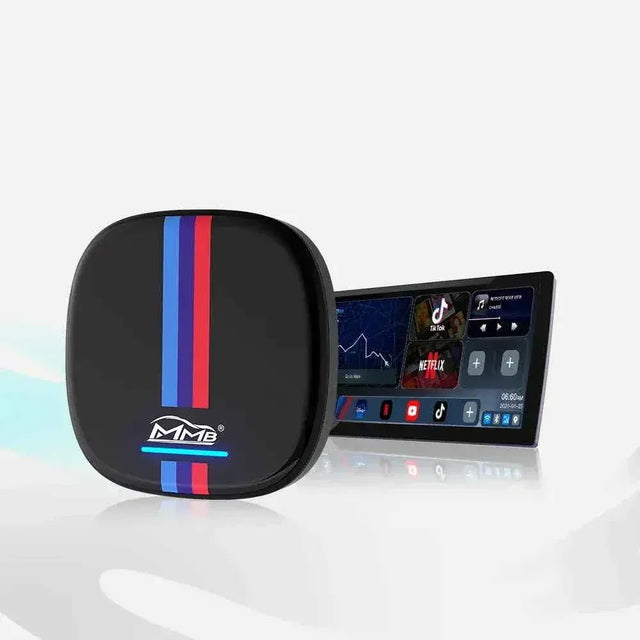
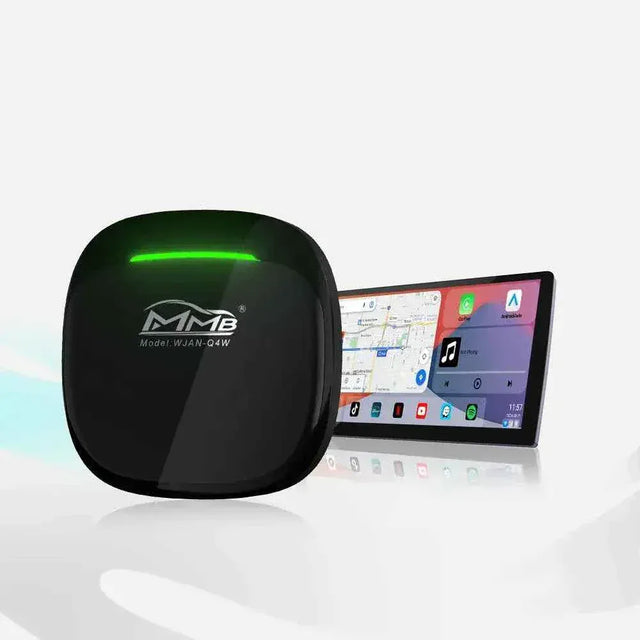
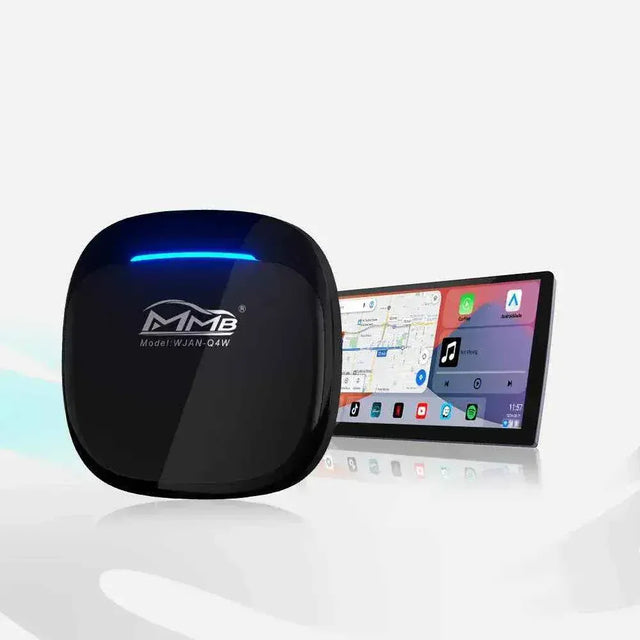
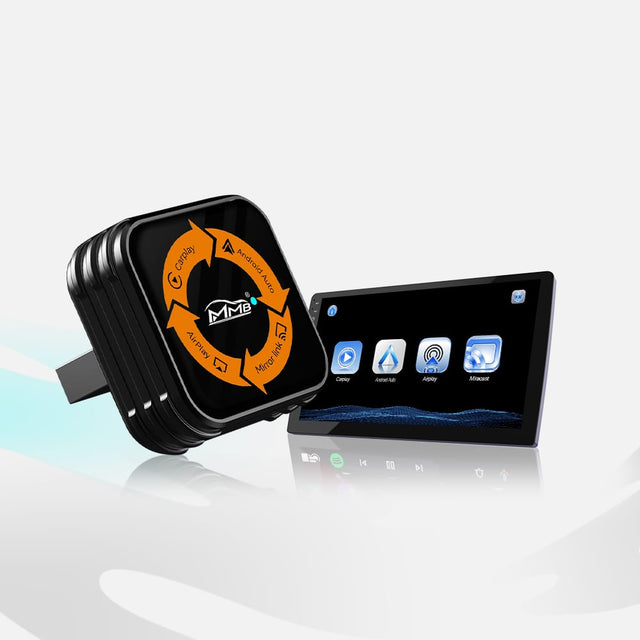
The MMB BMW AI Box is a separate Android-based app environment designed for compatible BMW and MINI vehicles with factory wireless CarPlay. It can be worth exploring when original CarPlay works, but the owner wants access to compatible apps beyond the original CarPlay experience, particularly while parked.
It does not turn an unsupported iPhone app into a native CarPlay app. If one particular app is the reason you are considering MMB, ask MMB technical support about that app and your BMW model before ordering. Being able to install an app is not a promise that every feature, subscription, or playback function will work.
The Bottom Line
For BMW CarPlay apps missing, the first fix costs nothing: confirm the connected iPhone and check Settings → General → CarPlay → your BMW → Customize. If the app is under More Apps, add it back.
If the app is not supported by CarPlay on your setup, treat that as a different requirement, not a fault with your BMW screen. Decide what you want to use and verify compatibility before purchasing anything.
FAQ
Why are BMW CarPlay apps missing when they are on my iPhone?
Your BMW may be connected to another phone, the app may be hidden in your CarPlay layout, or the app may not offer the CarPlay feature you expect. Check those possibilities in that order.
How do I restore a missing CarPlay app?
On the connected iPhone, open Settings → General → CarPlay → your BMW → Customize. If the app is under More Apps, tap the add button. Apple provides the same steps.
Why is one app missing while Maps and Phone work?
That pattern suggests checking the individual app and your CarPlay layout first. It does not, by itself, show that the BMW screen or entire CarPlay connection has failed.
Can an MMB box fix BMW CarPlay apps missing?
It will not restore a hidden icon inside Apple CarPlay. An MMB BMW AI Box provides a separate environment for compatible BMW vehicles with working factory wireless CarPlay. Check your vehicle and must-have app with MMB before buying.
BMW CarPlay Siri Not Working? 7 Fixes for a Frustrating Issue
BMW CarPlay Disconnecting at the Same Place? Find Out Why Before You Buy a Fix
Related Posts

BMW CarPlay Disconnecting at the Same Place? Find Out Why Before You Buy a Fix

BMW CarPlay Siri Not Working? 7 Fixes for a Frustrating Issue

CarPlay Wrong Location? Find the Cause Before You Replace Anything

My Car Has a Rear Screen. Why Can’t My Kids Watch Video While I Use Navigation?

BYD Wireless CarPlay AI Box: Worried It Won’t Work? Check This First

MMB BMW AI Box Before and After: What Actually Changes on Your Factory Screen?