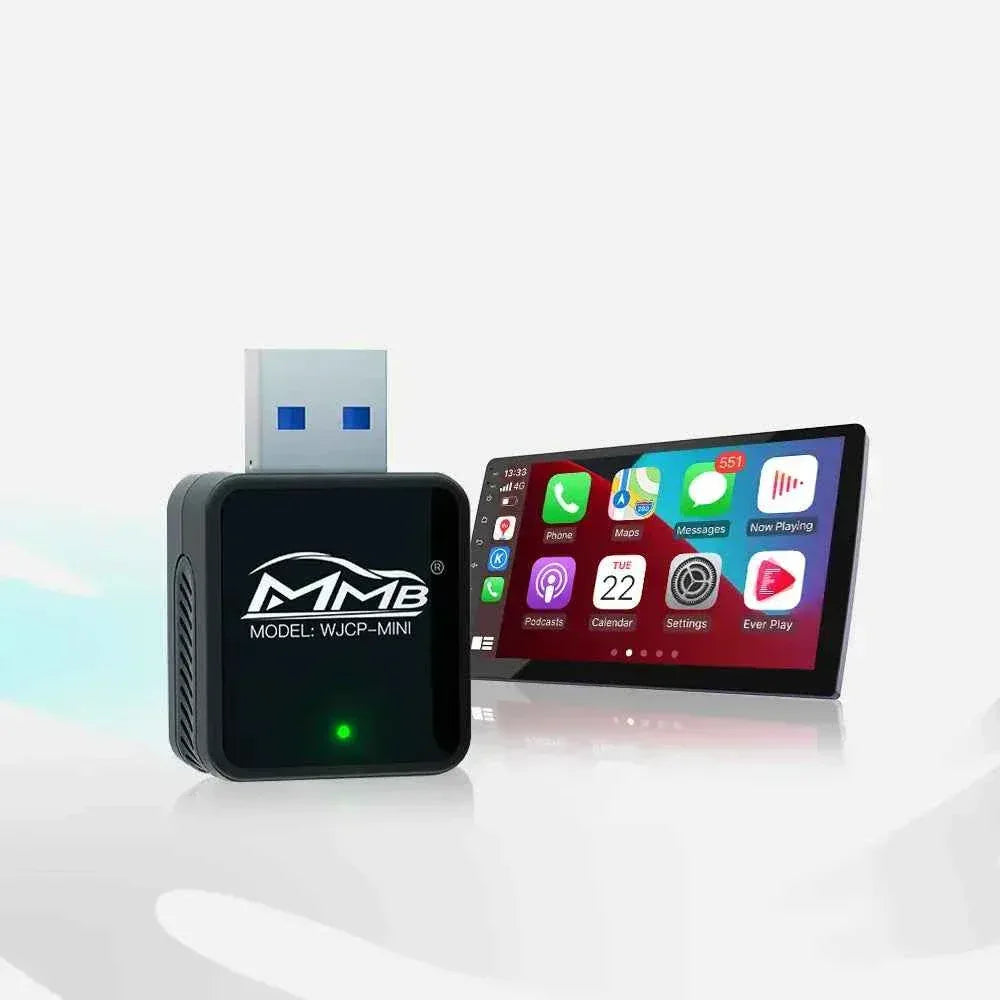

MMB AI Box Not Working? Complete Troubleshooting Guide
Is your MMB AI Box not working, failing to connect, showing a black screen, disconnecting repeatedly, or producing no sound? Most problems are caused by the USB connection, old pairing records, incorrect phone settings, or vehicle compatibility rather than permanent hardware failure.
This guide will help you identify the cause of the MMB AI Box not working and choose the safest solution before attempting a factory reset or firmware update.
Before troubleshooting, park the vehicle safely and allow the original infotainment system to load completely.
Quick Troubleshooting Checklist
If you searched for MMB AI Box not working, begin with these basic checks:
- Disconnect the AI Box for approximately 30 seconds.
- Restart the phone and vehicle infotainment system.
- Reconnect the box using its original USB cable.
- Confirm that you are using the vehicle’s CarPlay data port.
- Temporarily disconnect other paired phones.
- Disable VPN and battery-saving mode.
- Connect an iPhone directly to the same USB port.
- Confirm that factory CarPlay works without the AI Box.
If factory CarPlay does not start with the iPhone connected directly, the MMB AI Box not working may be a symptom of a problem with the vehicle, phone, USB port, or cable.
Apple recommends restarting the phone and vehicle, testing another cable or USB port, and keeping iOS and the vehicle software updated. See Apple’s official connection guide.
MMB AI Box Has No Power
When an MMB AI Box is not working and no indicator light appears, check the power connection first.
Some vehicles have several USB ports, but only one supports CarPlay data. Other ports may provide charging power only. Look for a CarPlay, smartphone, or data symbol next to the port.
Try the following:
- Reconnect both ends of the USB cable.
- Inspect the cable and connectors for damage.
- Use the original MMB cable.
- Test another compatible data cable.
- Avoid USB hubs and extension cables.
- Try another confirmed CarPlay USB port.
If the device still has no indicator light after testing a working port and cable, contact MMB support. Do not open the product or attempt a firmware update.
AI Box Has Power but Does Not Appear
An indicator light confirms that the AI Box is receiving power, but it does not confirm that a working data connection has been established.
If the MMB AI Box is not working despite having power, possible causes include:
- A charging-only USB port
- A cable that does not support data
- No factory CarPlay in the vehicle
- The wrong MMB product version
- A factory CarPlay interface that must be selected manually
Connect an iPhone directly to the same USB port. If wired CarPlay starts, the port supports data. If it does not, try another port or consult the vehicle manual.
Different MMB models are designed for factory wired CarPlay, factory wireless CarPlay, or selected BMW systems. Choosing the wrong version may prevent the device from loading. Review the available products in the MMB CarPlay Shop.
How to Fix an AI Box Black Screen
An AI Box black screen can appear during startup, after opening an application, or when switching from the original vehicle interface.
If your MMB AI Box is not working and displays only a black screen, follow this restart sequence:
- Return to the vehicle’s factory interface.
- Disconnect the MMB AI Box.
- Turn off the vehicle.
- Wait for the infotainment system to shut down.
- Restart the vehicle.
- Wait for the original interface to load completely.
- Reconnect the AI Box.
If the problem started after installing an application, clear its cache or uninstall it. Insufficient storage can also cause freezing and black screens, so remove unused applications, downloads, and offline videos.
Do not install firmware made for another MMB model. Incorrect firmware may prevent the device from starting.
CarPlay AI Box Not Connecting
A CarPlay AI Box not connecting is often caused by outdated Bluetooth, Wi-Fi, or CarPlay pairing records.
If the MMB AI Box is not working with an iPhone, remove the previous connection:
- Open Settings → General → CarPlay on the iPhone.
- Select the saved vehicle or AI Box.
- Tap Forget This Car.
- Remove the MMB device from Bluetooth settings.
- Delete the saved phone from the AI Box.
- Restart both devices.
- Pair the phone again as a new device.
Make sure Bluetooth, Wi-Fi, and Siri are enabled. Temporarily disable VPN, Personal Hotspot, and Low Power Mode during pairing.
Apple confirms that wireless CarPlay relies on Bluetooth and Wi-Fi during setup and operation. See the official Apple CarPlay instructions.
Android Auto Does Not Connect
When an MMB AI Box is not working with Android Auto, check the phone permissions and Google services.
Make sure:
- Bluetooth, Wi-Fi, mobile data, and location are enabled.
- Android Auto and Google Play services are updated.
- Android Auto has access to nearby devices, calls, and location.
- Battery optimization is disabled for Android Auto.
- No other phone is connecting automatically.
- Previous Android Auto records have been deleted.
Google recommends enabling Bluetooth, Wi-Fi, and Location Services when setting up wireless Android Auto. See the official Android Auto setup guide.
If Android Auto still fails, test another compatible Android phone. This can help determine whether the issue comes from the phone or AI Box.
AI Box Keeps Disconnecting
If your AI Box keeps disconnecting, the cause may be a loose cable, unstable USB power, multiple paired phones, wireless interference, overheating, or phone power-saving settings.
When the MMB AI Box is not working reliably, test these solutions individually:
- Replace the USB data cable.
- Keep only one phone paired.
- Disable VPN and battery-saving mode.
- Close unused applications.
- Allow the AI Box to cool down.
- Test with another compatible phone.
- Note whether disconnections occur in specific locations.
Wireless interference may be stronger in busy urban areas. If the box disconnects only in one location, test it elsewhere before resetting the device.
Change one setting at a time. This makes the cause easier to identify.
How to Fix AI Box No Sound
An AI Box no sound issue may affect music, calls, navigation prompts, or video applications.
If the MMB AI Box is not working correctly because there is no audio:
- Select CarPlay, USB, or the correct media source.
- Increase the volume while audio is playing.
- Check media, call, and navigation volumes separately.
- Confirm that the correct phone is connected.
- Review Bluetooth call and media permissions.
- Test another audio application.
If only one application has no sound, clear its cache, update it, or reinstall it.
Google notes that some vehicles control media, voice, and navigation volume separately. See the Android Auto volume guide.
Hotspot Connected but No Internet
An MMB AI Box not working online does not necessarily indicate defective hardware. The problem may come from the phone hotspot, mobile carrier, SIM card, or APN settings.
Try these steps:
- Confirm that mobile data works on the phone.
- Forget and reconnect the hotspot.
- Enable hotspot compatibility mode.
- Disable VPN and data-saving settings.
- Restart the phone and AI Box.
- Check whether the carrier permits hotspot use.
For models with a SIM-card slot, test the SIM card in a phone first. Confirm that the data plan is active and the APN settings are correct.
If the SIM card works in a phone but not in the AI Box, record the carrier name, APN information, and product model before contacting support.
Netflix or YouTube Is Not Working
Streaming problems do not always mean that the AI Box is defective. The issue may be caused by the internet connection, application version, account restrictions, regional availability, or insufficient storage.
Try the following:
- Test the internet connection in another application.
- Check the system date, time, and time zone.
- Update the affected streaming application.
- Clear its cache and stored data.
- Restart the AI Box.
- Sign out and sign in again.
- Reinstall the application if necessary.
If every application works except one streaming service, contact the app provider or wait for an updated version.
When to Reset the MMB AI Box
If the MMB AI Box is not working after all basic checks, a factory reset may help when:
- The system repeatedly freezes.
- Multiple applications fail.
- Connection records appear corrupted.
- Incorrect settings cannot be reversed.
- The problem began after a major configuration change.
A factory reset normally removes:
- Installed applications
- Saved accounts
- Wi-Fi networks
- Phone-pairing records
- Personal settings
Back up important information before performing the reset.
Firmware Update Safety
Before updating firmware:
- Confirm the exact MMB model.
- Record the serial number.
- Check the current software version.
- Use only an official update package.
- Maintain stable vehicle power.
- Never disconnect the USB cable during installation.
A firmware update should not be the first solution when a wireless CarPlay adapter is not working. Check the port, cable, phone settings, and pairing records first.
Incorrect or interrupted firmware installation can prevent the device from starting. Contact MMB support if the product stopped working immediately after an update.
When to Contact MMB Support
Contact support if:
- The device has no power with a working cable and port.
- The AI Box restarts repeatedly.
- A black screen remains after restarting.
- The same problem occurs with multiple phones.
- The device stopped working after an update.
- A factory reset does not solve the problem.
When reporting MMB AI Box not working, provide:
- Order number
- Product model and serial number
- Vehicle brand, model, and year
- Phone model and operating-system version
- Factory wired or wireless CarPlay type
- A description of the problem
- A photo or short video
- Troubleshooting steps already attempted
If the MMB AI Box is not working after completing every step above, stop further testing and contact MMB support with this information.

Frequently Asked Questions
Why is my MMB AI Box not working?
The most common causes are an incorrect USB port, damaged cable, outdated pairing records, unstable power, phone settings, or an incompatible product version.
Why does the AI Box have power but not appear?
The USB port may provide power without supporting data. Connect an iPhone directly and confirm that factory CarPlay starts through the same port.
How do I fix a CarPlay AI Box not connecting?
Delete the saved CarPlay and Bluetooth records from both devices. Restart them, enable Bluetooth, Wi-Fi, and Siri, and complete a new pairing.
Why does my AI Box keep disconnecting?
Possible causes include a loose cable, unstable USB power, wireless interference, overheating, multiple paired phones, VPN, or battery-saving settings.
How do I fix an AI Box with no sound?
Select the correct vehicle audio source and check media, call, navigation, and voice volumes separately. If only one application has no sound, clear its cache or reinstall it.
Should I update the firmware?
Only install firmware officially approved for your exact product model. Incorrect or interrupted firmware installation may prevent the device from starting.
Will a factory reset delete my information?
Yes. A factory reset normally removes installed applications, saved accounts, Wi-Fi networks, pairing records, and personal settings.
Bought a Used Car? Add CarPlay and Smart Features Without Replacing the Factory Screen
CarPlay AI Box Internet Guide: SIM Card vs Phone Hotspot vs Car Wi-Fi
مشاركات ذات صلة

Afraid of BMW MMB Box Battery Drain? What BMW Drivers Should Know Before Parked Streaming

Worried MMB Too Complicated? 7 Easy Things First-Time Users Should Know

Worried Your Car Screen Is Too Old for MMB? 7 Signs It May Still Work

Worried About MMB Mobile Hotspot? 7 Things Drivers Should Know Before Streaming

Parked Car Between Appointments: 7 Reasons MMB Makes Waiting Feel Better

Long Drive Alone: Why the Car Feels Different When Nobody Is Beside You

MMB AI Box Buying Guide: 7 Checks Before You Order