
BMW CarPlay HUD Not Showing? 5 Easy Checks Before You Buy an MMB Box
Your route is running on your BMW’s center display. The next turn is visible in Apple Maps, but the instrument cluster shows no direction and the head-up display (HUD) shows only your speed. It is easy to think CarPlay is broken, or that a new box will unlock the missing view.

A BMW CarPlay HUD not showing issue needs a more precise diagnosis. The center display, digital instrument cluster, and windshield HUD are different display surfaces. A map on one does not guarantee the same map or turn instruction on the others. Treat BMW CarPlay HUD not showing as a testable symptom, not a verdict. Before buying hardware or resetting everything, identify which surface is missing information and test what your particular BMW already supports.
BMW CarPlay HUD Not Showing: Understand the Three Displays
The center display is where the main CarPlay interface appears. CarPlay Dashboard is a layout on that center display; despite its name, it is not your BMW instrument cluster. Apple explains how compatible navigation apps appear on the CarPlay Dashboard.
The cluster is the display behind the steering wheel. The HUD projects selected driving information onto the windshield. Neither is simply an extra copy of the center screen. Apple says navigation apps can supply route guidance to an instrument cluster or HUD in supported cars. The vehicle controls how that information is displayed, so a supported setup may show a turn arrow or distance rather than a full map. Apple’s CarPlay developer overview explains this capability.
BMW’s 07/20 software release notes describe Apple Maps turning instructions and lane information on the HUD and/or cluster for affected vehicles. BMW’s Smartphone Integration service description adds conditions: the car must have a HUD, use a supported navigation app, and meet the relevant BMW Operating System and software requirements. Availability also varies by vehicle and market. That is why “CarPlay works on my center screen” is not a complete HUD compatibility test.
Check 1: Confirm That Your BMW Has an Active HUD

If “BMW CarPlay HUD not showing” describes your concern, start with a basic question: does your vehicle have the windshield HUD option, and does it display anything? A digital cluster behind the steering wheel does not prove that a windshield HUD was fitted.
With the vehicle parked, check whether speed or other factory information appears on the windshield. BMW gives different menu paths by software generation. For BMW Operating System 7, its HUD settings guide lists CAR → Settings → Displays → Head-up display. For Operating Systems 8, 8.5, and 9, it lists Apps → Vehicle → Displays → Head-up display. Menu wording can differ by model and market, so use your owner’s guide if those labels do not match.
Then, if your BMW has factory navigation, start a short route in BMW Maps. Does a turn prompt appear on the HUD? If neither speed nor factory navigation appears, the BMW CarPlay HUD not showing symptom may begin with HUD equipment or settings, not your iPhone. Ask BMW to verify your vehicle’s original equipment before buying an accessory.
Check 2: Compare Apple Maps with Your Usual Navigation App
For a BMW CarPlay HUD not showing complaint, a route preview is not the same as active turn-by-turn guidance. On your original factory CarPlay connection, open Apple Maps, enter a destination, and start navigation while safely parked. Later, observe the displays during an ordinary drive without interacting with menus. Keep your attention on the road.
Why test Apple Maps specifically? BMW’s 07/20 release notes name Apple Maps when describing turns and lane information in the HUD or cluster. That does not establish that every BMW supports the feature, or that every version of Google Maps or Waze behaves identically. Apple’s developer information says navigation apps can provide guidance to supported cars; the result depends on app and vehicle integration.
If Apple Maps prompts appear but another app’s prompts do not, record the app name and version. The BMW CarPlay HUD not showing issue may be app-specific. If neither app shows prompts but BMW’s own navigation does, your HUD itself is working. Focus the next checks on CarPlay integration, software, and supported features.
Check 3: Identify Your iDrive Generation and Software
A BMW CarPlay HUD not showing report needs the exact vehicle configuration. “BMW” is not one infotainment system. Write down your model, production year, market, iDrive or BMW Operating System version, and installed vehicle software level. Do not rely on model year alone.
BMW’s service description links supported smartphone-navigation information on the HUD to a vehicle equipped with HUD, a supported app, and at least BMW Operating System 7 with the relevant 07/20-era update. This is an eligibility condition in that document, not a promise that every OS 7 or newer car will show every app’s route. BMW also notes that service details can differ by model, technical capacity, and location.
If an owner forum says an update fixed someone else’s BMW CarPlay HUD not showing issue, do not install an unrelated firmware package. Ask BMW or an authorized specialist to verify which software and features are available for your specific vehicle. Note when the problem began, especially if it followed an iPhone, navigation-app, or iDrive update.
Check 4: Separate Instrument Cluster Settings from HUD Settings

If BMW CarPlay HUD not showing is your symptom but the center display works, remember that the cluster and HUD may have separate content selections. For BMW Operating System 8 and newer, BMW’s cluster FAQ describes selectable cluster views such as route preview and map view. It explains how steering-wheel controls change the cluster’s central display content. Those options do not mean every CarPlay app can place its full map there.
Run this comparison before treating the BMW CarPlay HUD not showing symptom as a hardware fault:
| What you observe | What it may suggest | Next useful step |
|---|---|---|
| Center-screen CarPlay works; no HUD information appears | HUD may be absent, off, or unavailable | Verify equipment and HUD settings |
| BMW navigation appears on HUD; Apple Maps does not | HUD works, but phone-navigation integration needs checking | Check app, iDrive version, and vehicle eligibility |
| Apple Maps directions appear; another app’s do not | Display support may differ by app | Check that app’s support and updates |
| HUD directions appear; cluster map does not | Cluster and HUD content are separate | Inspect cluster view settings |
| An MMB Android map works on the center screen only | Center-screen app access does not prove HUD integration | Do not assume the box forwards route prompts |
Documenting the BMW CarPlay HUD not showing pattern makes a support request more useful. This table narrows possibilities; it is not a vehicle-specific diagnosis. Take photos of the center display, cluster, and HUD when safely parked, or have a passenger help. Show which navigation app is active and whether guidance has actually started.
Check 5: Decide Whether an MMB BMW AI Box Meets Your Goal
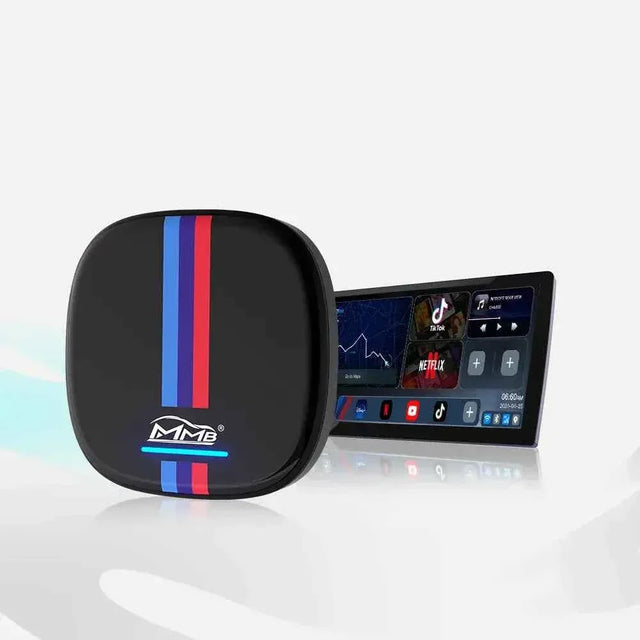
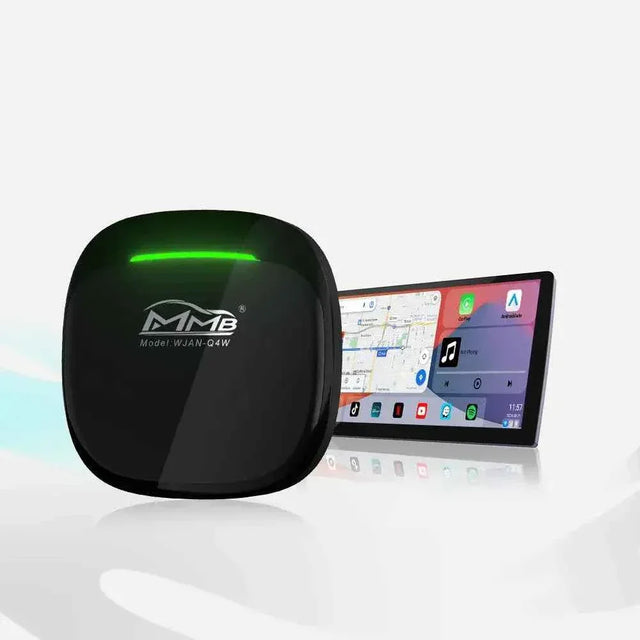
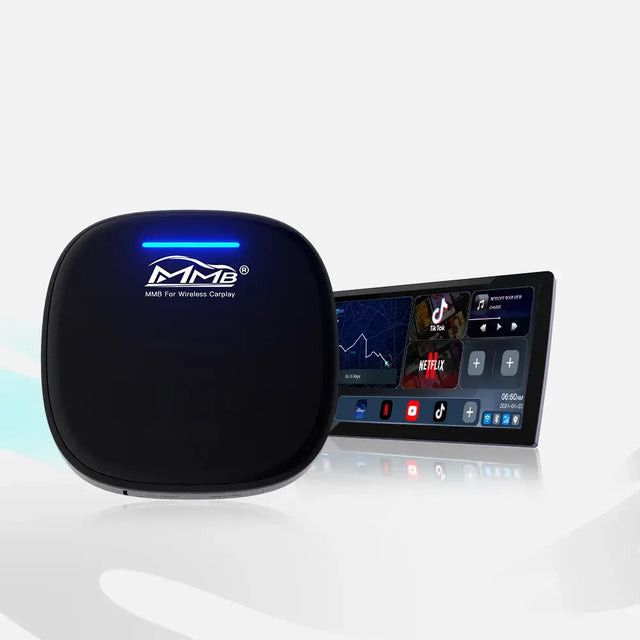
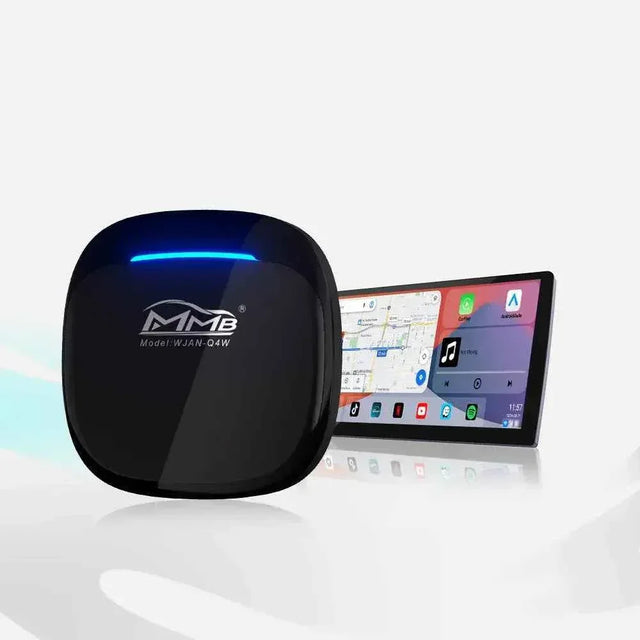
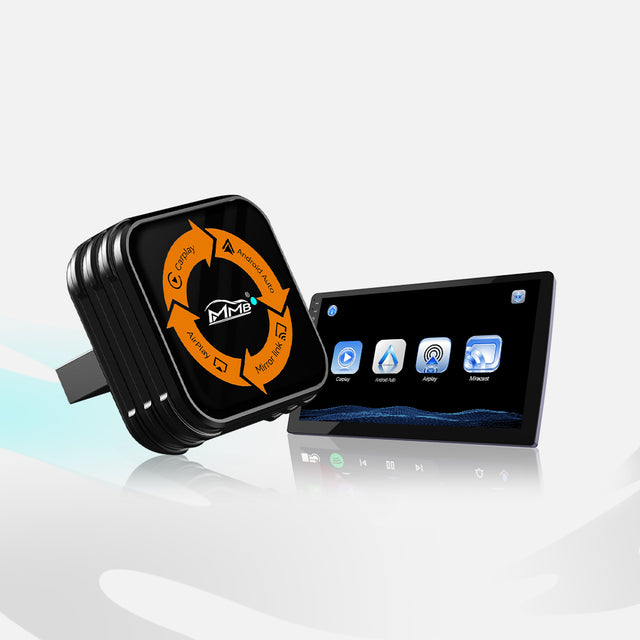
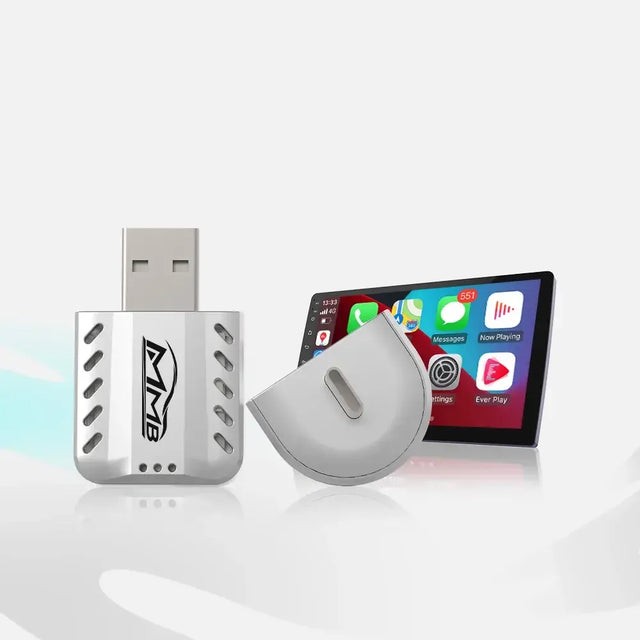
For anyone researching BMW CarPlay HUD not showing, this is the buying decision that matters. The MMB BMW AI Box product page describes a device for compatible BMW vehicles with factory wireless CarPlay. It adds supported Android apps and navigation options to the retained original center screen. The product page does not promise that an MMB Android map will send turn-by-turn directions to the BMW instrument cluster or HUD. Built-in GPS inside the box should not be mistaken for BMW HUD integration.
If your only goal is to cure BMW CarPlay HUD not showing, do not buy an MMB box on that assumption. First complete the factory-navigation and Apple Maps comparisons, then ask BMW what your vehicle supports. If factory wireless CarPlay already works and you want additional apps, navigation choices, or parked entertainment on the center display, the BMW-specific MMB product may address that different goal.
The MMB FAQ explains that an AI Box requires an existing compatible CarPlay system; it does not create factory CarPlay in a BMW that never had it. Before ordering, contact MMB support with your model, year, iDrive version, factory CarPlay connection, and intended use. Say explicitly if HUD or cluster navigation is a purchase requirement. A clear answer before checkout is more valuable than hoping an accessory changes a feature it does not advertise.
BMW CarPlay HUD Not Showing: Choose the Right Next Step
If factory BMW navigation does not reach an equipped HUD, check the vehicle first. If BMW navigation works but Apple Maps does not, confirm the supported app and software combination. If both work and you mainly want more apps on the center display, then explore the BMW-specific MMB box. The right purchase follows your test result, not the other way around.
Frequently Asked Questions
Why does CarPlay show a map on my BMW center screen but not on the HUD?
The center display and HUD use different integrations. Your BMW needs the HUD hardware, relevant vehicle software, and support for the navigation app’s guidance data. A working center-screen map alone does not establish those conditions. A BMW CarPlay HUD not showing case may reflect an unsupported configuration rather than a broken screen.
Is CarPlay Dashboard the same as the BMW digital instrument cluster?
No. CarPlay Dashboard is a layout on the main CarPlay display. The BMW instrument cluster is the separate driver display behind the steering wheel.
Will Apple Maps, Google Maps, and Waze all show the same HUD instructions?
Do not assume so. BMW’s 07/20 release notes specifically describe Apple Maps guidance. Other navigation apps may send guidance in supported cars, but the result depends on the app, BMW configuration, and software. Test each app on your vehicle.
Can the MMB BMW AI Box make navigation appear on my cluster or HUD?
The current product page describes added apps and navigation on the original center screen, but does not claim cluster or HUD route output. Do not purchase it solely to add those displays unless MMB confirms that exact behavior for your vehicle and software.
What should I send support about BMW CarPlay HUD not showing?
Send the BMW model and production year, market, iDrive/software version, whether the car has a HUD, the navigation app and version, and the results of your BMW Maps versus Apple Maps test. A short parked-vehicle video or clear photos of each display can help.
MMB BMW AI Box No Sound? 5 Checks for Frustrating Silence
MMB AI Box Warranty: 5 Easy Steps If It Stops Working
مشاركات ذات صلة

Worried About BMW MMB AI Box Factory Features? Will Your Camera, Radio and Buttons Still Work?

MMB BMW AI Box: More Apps for Your BMW, But Will Your Reverse Camera Still Work?

MMB AI Box Warranty: 5 Easy Steps If It Stops Working

MMB BMW AI Box No Sound? 5 Checks for Frustrating Silence

MMB Max Ultra Phone Switching: 6 Smart Rules for Two Drivers

MMB Max 5.0 Phone Switching: 5 Checks for Frustrating Mix-Ups