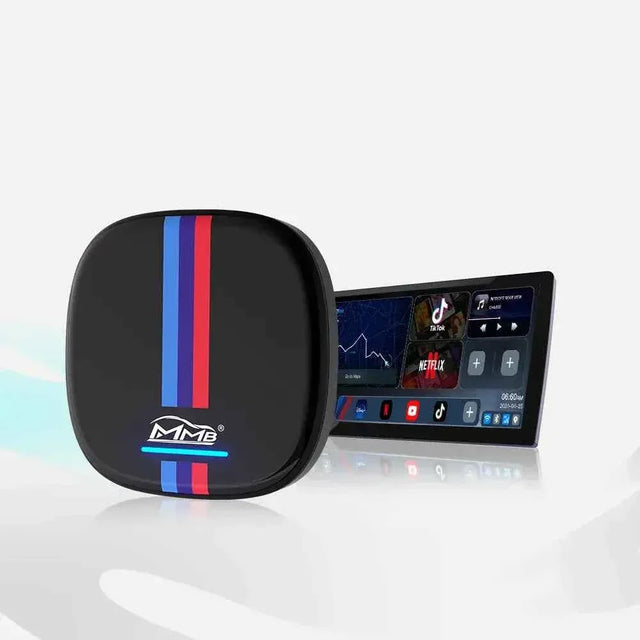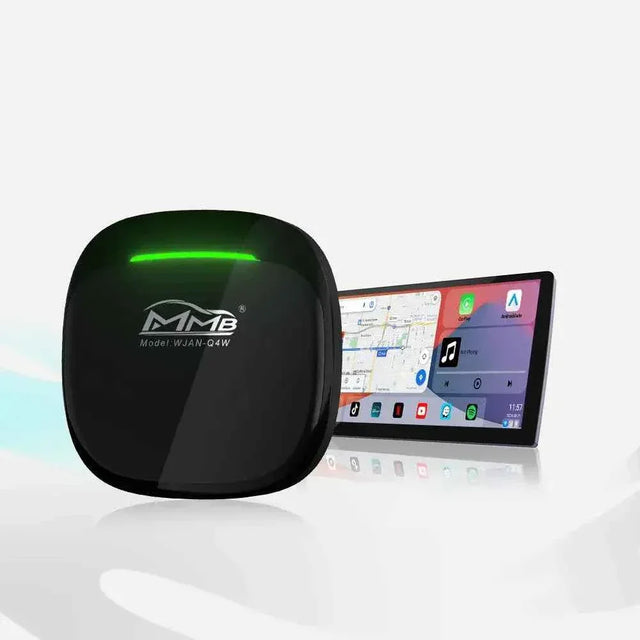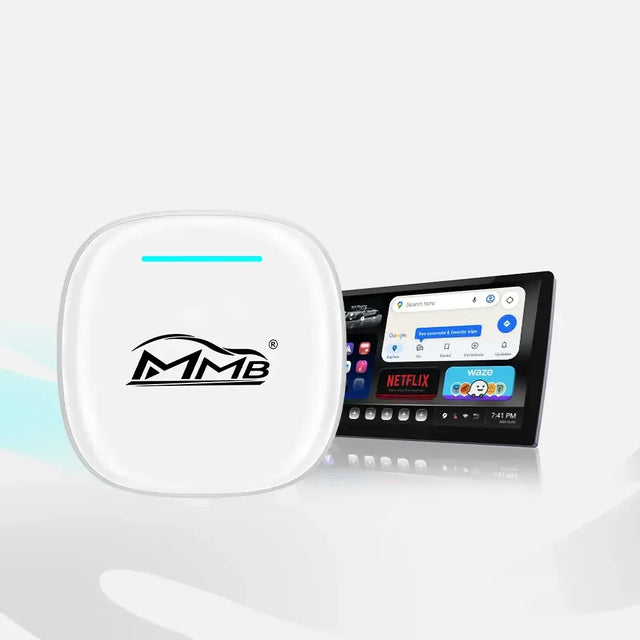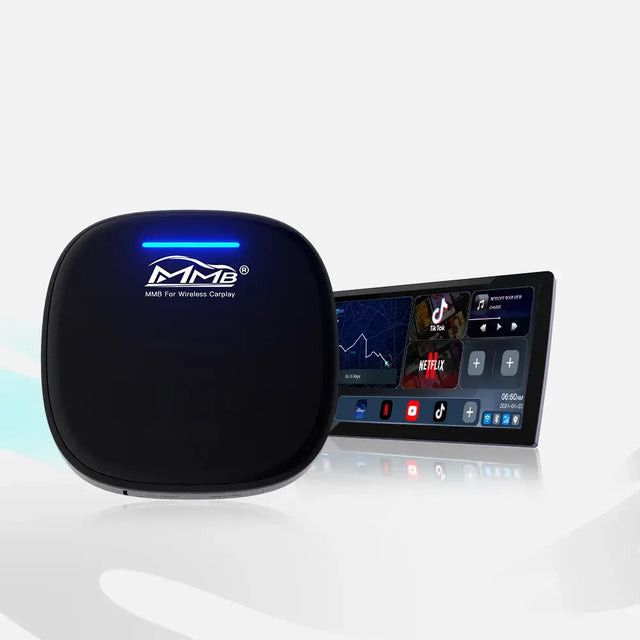

Worried About BMW MMB AI Box Factory Features? Will Your Camera, Radio and Buttons Still Work?
BMW MMB AI Box factory features are often the first concern for BMW owners who like the idea of more apps but do not want to lose the controls they already use. The reverse camera appears every time you park. The radio gets you through a commute. The steering-wheel buttons let you adjust audio without reaching for the screen. These are not small details: BMW MMB AI Box factory features can determine whether an upgrade feels convenient or frustrating.
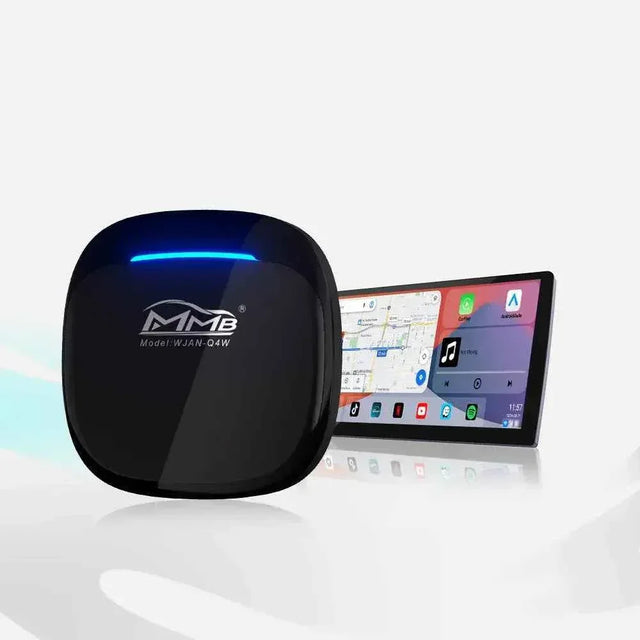
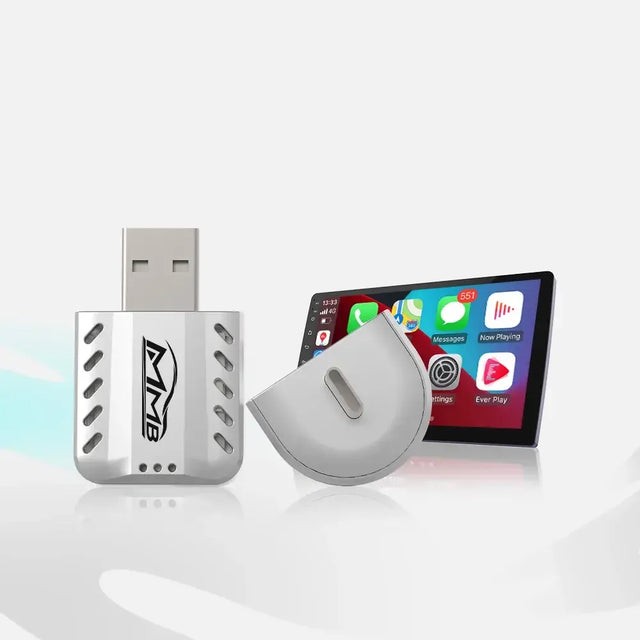
The dedicated MMB BMW AI Box is designed to work through compatible factory wireless Apple CarPlay rather than replacing the BMW dashboard. MMB says you can return to the original vehicle interface. But “the original feature still works” and “the same button controls every Android app” are different claims. This guide shows how to check BMW MMB AI Box factory features in your own vehicle before ordering and again after setup.
BMW MMB AI Box Factory Features: What Does “Keeping Them” Mean?
Think about BMW MMB AI Box factory features in three layers. First, does a function work in the original iDrive interface when no box is connected? Second, can you return to iDrive and use it after connecting the box? Third, does that function or button behave the same way inside the MMB interface or a particular Android app?
A “yes” at one layer does not prove “yes” at all three. A steering-wheel button may still adjust the BMW radio but not skip tracks in a certain third-party app. A camera may remain part of the vehicle’s parking system, yet you still need to confirm that its view appears when you expect it. The MMB FAQ describes the box as an external device and says users can return to the factory interface. That is a useful starting point, not a substitute for testing your own car.
Five Checks to Make Before You Buy
1. Make Sure Factory Wireless CarPlay Already Works

Before comparing BMW MMB AI Box factory features, confirm that your BMW meets the product’s basic connection requirement. The dedicated BMW MMB AI Box is listed for compatible BMW and MINI vehicles with factory wireless Apple CarPlay. A built-in screen, Bluetooth pairing or USB socket does not by itself prove that the vehicle has usable wireless CarPlay.
With your iPhone, connect to the BMW’s original wireless CarPlay and check that the CarPlay screen opens without plugging in the phone. If it does not, photograph your iDrive software information and ask MMB to check compatibility. BMW’s official CarPlay instructions describe different menu paths for different iDrive operating systems. Your exact system matters more than a broad model-year range. This CarPlay check is the foundation for every later BMW MMB AI Box factory features test.
Do not buy the dedicated BMW box on the assumption that it will add CarPlay to a vehicle that has never had it. Establish this baseline first, then investigate the BMW MMB AI Box factory features that matter to you.
2. Record Your Reverse Camera and Parking Display

A camera or parking graphic is too important to evaluate from a generic product photo. Among BMW MMB AI Box factory features, the parking display deserves a clear before-and-after test. Before connecting an AI Box, park in a safe location and observe the normal BMW display. Does reverse bring up a rear camera? Are parking-distance graphics shown? Do you have a parking-assistance button? Take a short video showing the screen and the action that brings up the view.
BMW explains that Park Distance Control and camera views depend on vehicle equipment. Its guidance describes how the original BMW system behaves; it does not certify the behavior of every aftermarket device. That distinction is essential when you review BMW MMB AI Box factory features.
After setup, repeat the same stationary test with the MMB interface active and again after returning to iDrive. If a camera or parking warning does not appear reliably, do not rely on it while maneuvering. Stop, document the difference and seek technical help. A screen test should support safe driving, not replace looking around the vehicle.
3. Check Radio and Audio-Source Switching
If the factory radio matters to you, write down exactly how you use it now. Select FM, AM, satellite radio or another original source that your BMW actually has. Check the sound, volume and station controls. Then switch to CarPlay or Bluetooth audio and back again.
This BMW MMB AI Box factory features check is about preserving access to the BMW source, not promising that the radio and an Android streaming app can play at the same time. The box cannot add a factory radio function to a car that lacks one, and the active audio source can change what you hear. BMW’s Bluetooth audio guidance also notes that iDrive control of connected devices may vary with equipment and device support.
Once the box is connected, return to the BMW media menu and select the original radio. Can you hear it at the expected volume? Does it resume when you leave the MMB screen? Checking BMW MMB AI Box factory features this way helps you distinguish an audio-source setting from a feature that is unavailable. “No sound” is less useful to support than “FM plays in iDrive, but audio disappears after I open this app.”
4. Test Steering-Wheel Buttons and the iDrive Controller Separately

Steering-wheel buttons are part of everyday driving, so they deserve a specific BMW MMB AI Box factory features test. While parked, check volume, track skip, phone answer and voice-command buttons in the original BMW interface. Test the rotary iDrive controller too. Record which functions work, rather than relying on the statement “the buttons work.”
After setup, repeat the test in two places: the original BMW menu and the MMB menu. Then open the particular Android app you expect to use. A button that works in iDrive but not in one app has not necessarily been disabled at vehicle level; app controls and input mapping can differ.
If your BMW is not touch-enabled, tell MMB before ordering. Its FAQ says a compatible original controller or knob can be used and mentions an optional remote for easier navigation. Ask whether your most-used apps are practical with the controls available in your car. That question is more useful than assuming every app will feel like factory iDrive.
5. Confirm Calls and Your Route Back to iDrive
Make a brief parked phone call using the original BMW setup. Check that you hear the caller, they hear you, and the call controls respond. Also practice returning from factory CarPlay to the BMW home or media screen. Knowing that route makes it easier to compare BMW MMB AI Box factory features after installation.
With the box connected, repeat the call and navigation checks. Be precise about whether a problem occurs in the original BMW phone interface, in CarPlay or inside a third-party Android calling app. Those may have different settings. Do not assume a microphone problem in one app means the factory microphone has stopped working everywhere.
Run the Same Checklist After Setup
The value of a before-and-after test is that you can compare the same car under the same conditions. With the vehicle parked, connect the box according to the included instructions. Open its interface, then check the camera view, parking graphics, radio, steering-wheel controls, iDrive knob and phone call in the same order as before.
Keep a simple record of BMW MMB AI Box factory features: “works in iDrive,” “works in MMB,” or “behaves differently in a named app.” Test the camera while stationary in a safe place. Use video or other entertainment apps only while parked, and never let screen testing distract you from driving.
If the original BMW function works after leaving the MMB interface but does not work inside an Android app, report that distinction. If it no longer works even in iDrive, stop using the affected feature until the cause is understood. Avoid changing several settings at once; a clear comparison makes troubleshooting much faster.
What Should You Send MMB Before Ordering?
For a useful answer about BMW MMB AI Box factory features, send your exact BMW model, production year and region, plus a photo of the iDrive menu or software information. Add a short video of factory wireless CarPlay working and, if possible, your normal reverse-camera and parking display. Mention any aftermarket screen, camera or prior infotainment modification.
Then name your non-negotiable features. For example: “I need the factory rear camera to appear when I select reverse, the original FM radio to remain accessible, and steering-wheel volume to work. Is this BMW configuration supported, and are there known limitations?” The MMB technical-support page asks for vehicle details and original CarPlay information to help confirm compatibility. A specific question can receive a specific answer.
What If Something Changes After Installation?
Document BMW MMB AI Box factory features one at a time rather than changing several settings together. Record one short video showing the feature with the box disconnected or in the original BMW interface, and another showing the unexpected behavior with the box connected. Include the active audio source or app name. If you have already purchased, provide your order number and vehicle details to MMB technical support.
That process protects your time. It also turns a general worry about BMW MMB AI Box factory features into a diagnosable issue. The goal is not to claim every BMW behaves identically. It is to verify your car, understand the limits of each interface and make an informed purchase.
FAQ
Will the MMB BMW AI Box remove my original reverse camera?
The box is described as an external device rather than a camera replacement. Still, confirm how the camera display behaves in your BMW before purchase and test it again after setup. Do not rely on any parking display that is missing or inconsistent.
Will the BMW radio still work with the AI Box connected?
The radio belongs to the original BMW system. Check that you can return to iDrive, select the factory radio source and hear it normally. Do not assume the radio and an Android app will output audio simultaneously.
Do steering-wheel buttons control every Android app?
No universal promise should be made. Test the buttons in the original BMW interface and then in the specific MMB apps you plan to use. Different behavior in one app is not the same as losing the car’s original button function.
Does my BMW need factory wireless CarPlay?
The dedicated BMW MMB AI Box product page specifies compatible BMW and MINI models with factory wireless Apple CarPlay. Check that the original feature is present and working before ordering.
How can I confirm BMW MMB AI Box factory features for my exact car?
Send MMB your model, year, iDrive photo, proof of working factory wireless CarPlay and videos of the camera, radio or controls you need to keep. Ask support to confirm your configuration and any known limitations before checkout.
Related Posts

MMB BMW AI Box: More Apps for Your BMW, But Will Your Reverse Camera Still Work?

MMB AI Box Warranty: 5 Easy Steps If It Stops Working

BMW CarPlay HUD Not Showing? 5 Easy Checks Before You Buy an MMB Box

MMB BMW AI Box No Sound? 5 Checks for Frustrating Silence

MMB Max Ultra Phone Switching: 6 Smart Rules for Two Drivers

MMB Max 5.0 Phone Switching: 5 Checks for Frustrating Mix-Ups