
تأخير الصوت في صندوق BMW AI: كيفية إصلاح مشكلات مزامنة الصوت والفيديو
ما هو تأخير الصوت في صندوق BMW AI؟
يعد تأخير الصوت في صندوق BMW AI مشكلة شائعة يواجهها بعض مالكي سيارات BMW عند مشاهدة مقاطع الفيديو عبر YouTube أو Netflix أو Disney+ أو تطبيقات الوسائط المتعددة الأخرى على صندوق AI.
تظهر المشكلة عادةً على النحو التالي:
- تشغيل الصوت بعد الفيديو
- مشاكل مزامنة الشفاه عند مشاهدة مقاطع الفيديو
- تشغيل الفيديو بسلاسة بينما يتأخر الصوت
- تزايد عدم تزامن الصوت والفيديو تدريجياً
على الرغم من أن هذه المشكلة قد تكون محبطة، إلا أن الخبر السار هو أن تأخير الصوت في صندوق BMW AI عادة ما يكون ناتجًا عن إعدادات البرامج بدلاً من عيوب الأجهزة. في معظم الحالات، يمكن حل المشكلة في غضون دقائق قليلة.
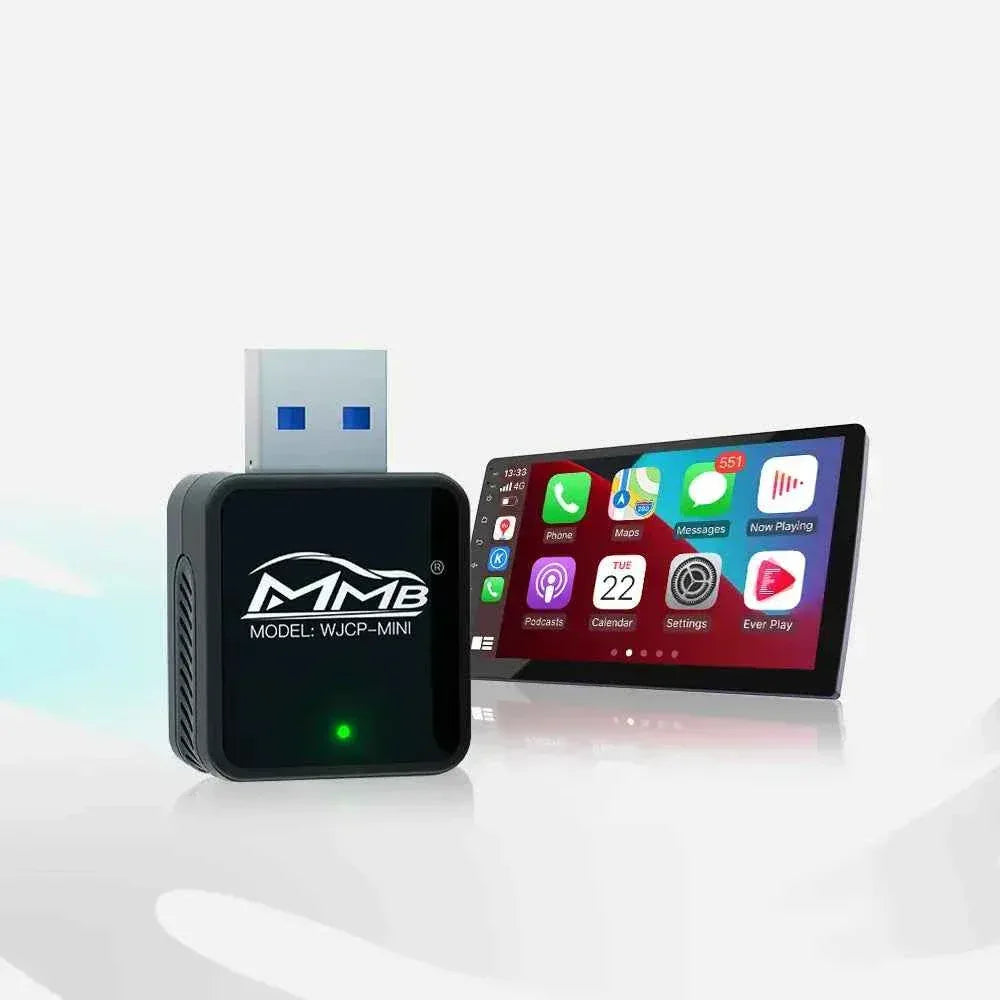
إذا كنت تستخدم صندوق MMB BMW للوسائط المتعددة، سيوضح لك هذا الدليل أسباب المشكلة والحل الأسهل.
يمكنك معرفة المزيد عن المنتج هنا:
لماذا يحدث تأخير الصوت في صندوق BMW AI؟
لفهم تأخير الصوت في صندوق BMW AI، من المهم معرفة كيفية عمل صندوق الذكاء الاصطناعي.
صندوق BMW AI هو في الأساس نظام وسائط متعددة يعمل بنظام Android فوق نظام BMW iDrive الأصلي. يتصل بـ:
- وحدة رأس BMW
- صوت البلوتوث
- CarPlay اللاسلكي
- إرسال Wi-Fi
- تطبيقات البث مثل YouTube و Netflix
نظرًا لأن الصوت والفيديو تتم معالجتهما بشكل منفصل ثم تتم مزامنتهما، فإن أي تأخير طفيف في إرسال البلوتوث أو معالجة الصوت يمكن أن يؤدي إلى عدم تزامن الصوت والفيديو.
تأخر الصوت عبر البلوتوث
يعد تأخر البلوتوث أحد الأسباب الأكثر شيوعًا لـ تأخير الصوت في صندوق BMW AI.
عندما تشاهد مقطع فيديو على YouTube:
- يقوم صندوق AI بفك تشفير الفيديو.
- يتم إرسال الصورة مباشرة إلى شاشة BMW.
- يتم إرسال الصوت عبر البلوتوث أو نظام الصوت الأصلي لسيارة BMW.
- تقوم وحدة رأس BMW بفك تشفير الصوت وإخراجه.
تُدخل هذه العملية تأخيرًا صغيرًا، والذي يمكن أن يصبح ملحوظًا أثناء تشغيل الفيديو.
وفقًا لويكيبيديا، يختلف تأخر صوت البلوتوث حسب برنامج الترميز والأجهزة:
https://en.wikipedia.org/wiki/Bluetooth
توافق تطبيق البث
سبب آخر لـ تأخير الصوت في صندوق BMW AI هو تحسين التطبيق.
تستخدم تطبيقات البث المختلفة طرق فك تشفير مختلفة. تشمل التطبيقات الشائعة:
- يوتيوب
- نتفليكس
- ديزني+
- هولو
قد لا تكون بعض إصدارات هذه التطبيقات محسّنة تمامًا لأنظمة السيارات التي تعمل بنظام Android.
توضح جوجل أن مزامنة الوسائط تعتمد بشكل كبير على تسريع الأجهزة وتحسين البرامج:
https://developer.android.com/media
إذا لم يكن فك تشفير الأجهزة أو تخزين الصوت مؤقتًا محسّنًا بشكل صحيح، فقد يصبح الصوت والفيديو غير متزامنين.
CarPlay اللاسلكي و Android Auto
يستخدم CarPlay اللاسلكي و Android Auto مزيجًا من:
- الاقتران عبر البلوتوث
- إرسال Wi-Fi
- فك تشفير الصوت
- عرض الفيديو
توضح آبل أن CarPlay اللاسلكي يعتمد على كل من تقنيات البلوتوث والواي فاي:
https://www.apple.com/ios/carplay
نظرًا لتداخل العديد من التقنيات اللاسلكية، فإن التأخير البسيط أمر طبيعي. ومع ذلك، إذا أصبح التأخير واضحًا، فعادةً ما يؤدي تعديل إعدادات النظام إلى حل المشكلة.
أسهل طريقة لإصلاح تأخير الصوت في صندوق BMW AI
إذا كنت تستخدم صندوق MMB BMW للوسائط المتعددة، يوجد إعداد مدمج مصمم خصيصًا لحل مشكلة تأخير الصوت في صندوق BMW AI.
اتبع هذه الخطوات:
الخطوة 1: افتح الإعدادات
على صندوق MMB BMW، اذهب إلى:
الإعدادات ← المزيد من الإعدادات
الخطوة 2: تغيير وضع الصوت
ابحث عن:
وضع الصوت
قم بتبديله إلى:
الوضع 3
تم تحسين الوضع 3 خصيصًا لتحسين مزامنة الصوت وتقليل تأخر البلوتوث.
الخطوة 3: ضبط قيمة تأخير الصوت
بعد تحديد الوضع 3، اختر قيمة تأخير مناسبة.
القيم الموصى بها:
- 800 مللي ثانية – لتأخير صوت طفيف
- 1000 مللي ثانية – موصى به لمعظم سيارات BMW
- 1200 مللي ثانية – لمشاكل مزامنة الصوت والفيديو الشديدة
يمكنك اختبار قيم مختلفة حتى يتزامن الصوت والفيديو تمامًا.
الخطوة 4: إعادة تشغيل نظام صندوق BMW AI
بعد إتمام الإعدادات:
- ارجع إلى نظام BMW iDrive الأصلي.
- اخرج من صندوق MMB BMW بالكامل.
- أعد الدخول إلى نظام صندوق MMB BMW.
ستصبح الإعدادات الجديدة سارية المفعول فورًا.
في معظم الحالات، تحل هذه الطريقة مشكلة تأخير الصوت في صندوق BMW AI بشكل كامل.
لماذا يعمل الوضع 3؟
يتساءل العديد من المستخدمين لماذا يحل تغيير وضع الصوت المشكلة.
السبب بسيط.
يعدل الوضع 3:
- تخزين مؤقت لإخراج الصوت
- توقيت إرسال البلوتوث
- خوارزميات مزامنة الصوت
- تعويض تأخر النظام
بدلاً من تغيير سرعة الفيديو، يقوم النظام بتأخير الإشارة الصوتية بذكاء لتتوافق مع الفيديو.
هذا يخلق مزامنة مثالية بين:
- مقاطع فيديو يوتيوب
- أفلام نتفليكس
- بث ديزني+
- محتوى انعكاس الشاشة
نتيجة لذلك، تختفي مشكلة تأخير الصوت في صندوق BMW AI.
نصائح إضافية لتحسين مزامنة الصوت
بالإضافة إلى تغيير وضع الصوت، هناك عدة طرق أخرى لتحسين المزامنة.
حافظ على تحديث البرامج الثابتة
غالبًا ما تتضمن تحديثات البرامج الثابتة:
- تحسينات البلوتوث
- تحسين الصوت
- تحسينات فك تشفير الفيديو
- إصلاح الأخطاء
إذا كنت تستخدم صندوق MMB BMW للوسائط المتعددة، فتأكد من استخدامك لأحدث إصدار من البرامج الثابتة.
تحديث تطبيقات البث
قد تتسبب التطبيقات القديمة أحيانًا في مشاكل في المزامنة.
تأكد من تحديث:
- يوتيوب
- نتفليكس
- ديزني+
- سبوتيفاي
بعد التحديث:
- امسح ذاكرة التخزين المؤقت للتطبيق
- أعد تشغيل النظام
- اختبر تشغيل الفيديو مرة أخرى
إغلاق تطبيقات الخلفية
قد يؤثر تشغيل العديد من التطبيقات في نفس الوقت على الأداء.
لتقليل فرصة حدوث تأخير الصوت في صندوق BMW AI:
- أغلق التطبيقات غير المستخدمة
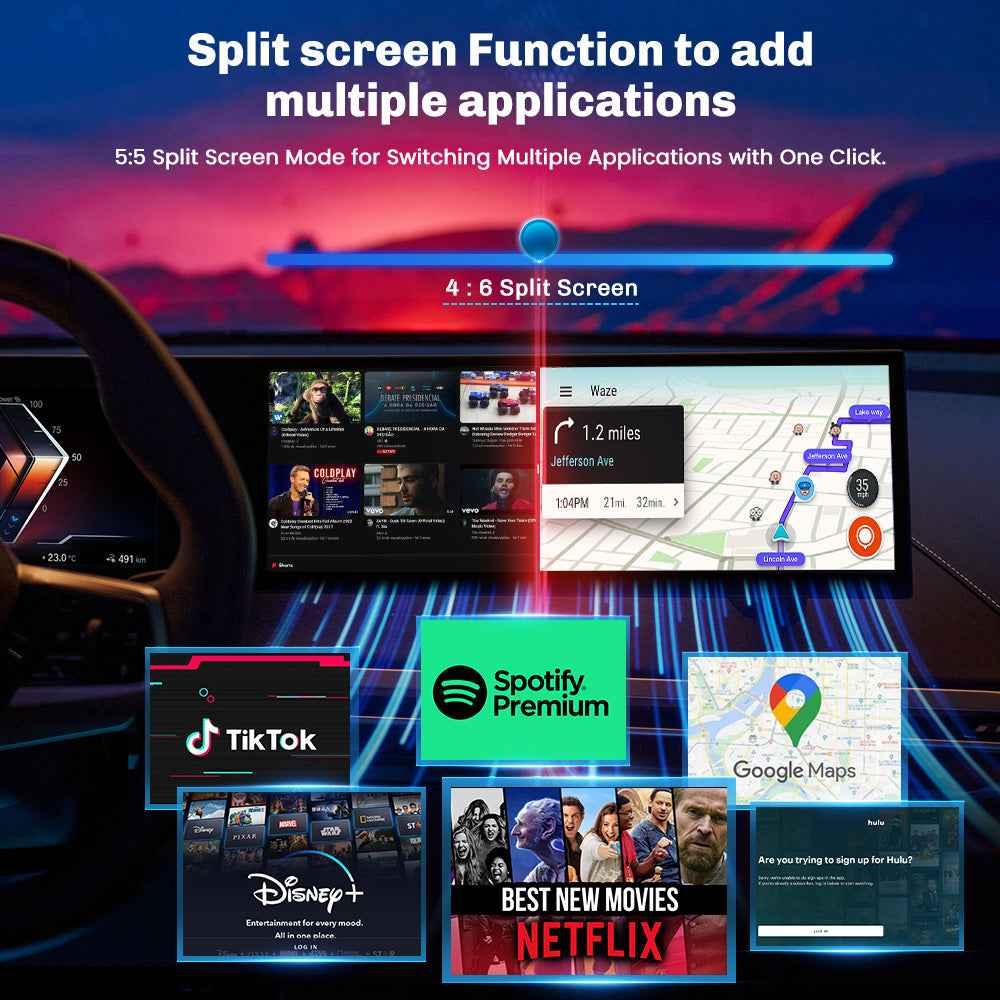
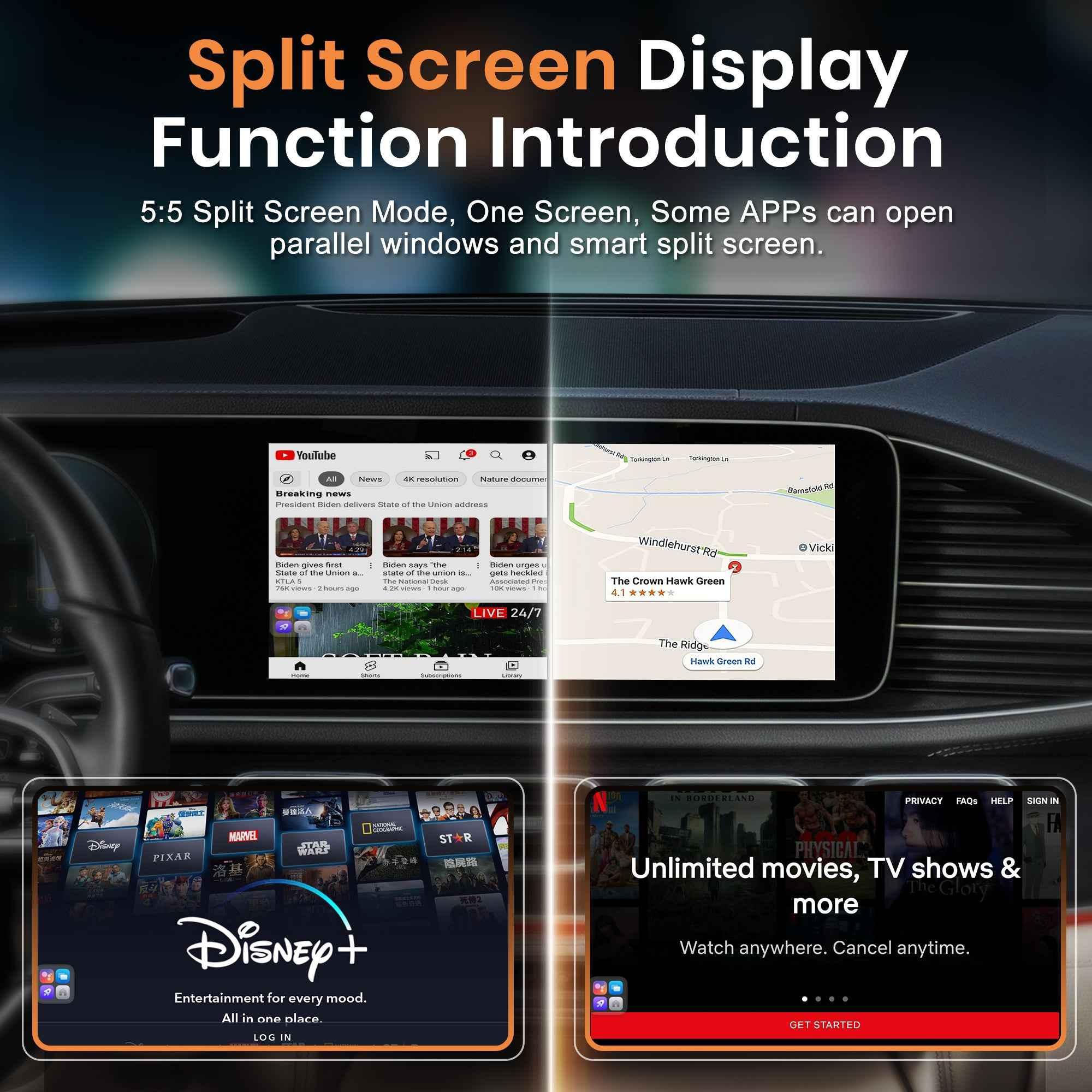
- عطّل وضع تقسيم الشاشة
- أعد تشغيل الجهاز بانتظام
- تجنب تشغيل تطبيقات بث متعددة في وقت واحد
يقلل هذا من استخدام وحدة المعالجة المركزية ويحسن أداء الوسائط المتعددة.
الخلاصة
يعد تأخير الصوت في صندوق BMW AI مشكلة شائعة يمكن أن تحدث عند مشاهدة محتوى YouTube أو Netflix أو Disney+ أو غيرها من محتويات الوسائط المتعددة على صندوق AI.
لحسن الحظ، إذا كنت تستخدم صندوق MMB BMW للوسائط المتعددة، فالحل بسيط:
- اذهب إلى الإعدادات
- افتح المزيد من الإعدادات
- غيّر وضع الصوت إلى الوضع 3
- حدد قيمة تأخير بين 800-1200 مللي ثانية
- ارجع إلى نظام BMW الأصلي وأعد الدخول إلى صندوق MMB BMW
يحل هذا الإعداد بشكل فعال مشاكل مزامنة الصوت والفيديو لمعظم سيارات BMW.
إذا كنت تبحث عن حل مخصص لترقية وسائط BMW المتعددة، فراجع:
صندوق MMB BMW للوسائط المتعددة
https://carplaymmb.com/products/mmb-bmw-multimedia-box
الأسئلة الشائعة
لماذا يتأخر صوت صندوق BMW AI Box الخاص بي؟
الأسباب الأكثر شيوعًا هي تأخير البلوتوث، أو تحسين تطبيق البث، أو تأخيرات إرسال الصوت اللاسلكي.
كيف يمكنني إصلاح تأخير الصوت في BMW AI Box؟
انتقل إلى الإعدادات ← المزيد من الإعدادات، وقم بتبديل وضع الصوت إلى الوضع 3، وحدد قيمة تأخير بين 800 و 1200 مللي ثانية، ثم أعد تشغيل نظام MMB BMW Box.
ما هو أفضل إعداد تأخير لـ BMW AI Box؟
يجد معظم مالكي سيارات BMW أن 1000 مللي ثانية هو أفضل توازن. ومع ذلك، يمكنك اختبار 800 مللي ثانية أو 1200 مللي ثانية حسب سيارتك وتفضيلاتك.
هل يسبب البلوتوث تأخير الصوت في BMW AI Box؟
نعم. يسبب إرسال الصوت عبر البلوتوث تأخيرًا، خاصة عند بث مقاطع الفيديو أو استخدام CarPlay اللاسلكي.
هل سيؤثر تغيير وضع الصوت إلى الوضع 3 على تشغيل الموسيقى؟
لا. تم تصميم الوضع 3 لتحسين التزامن أثناء تشغيل الفيديو ولا يؤثر سلبًا بشكل عام على الموسيقى أو صوت التنقل.
كيف تشاهد Netflix أثناء شحن سيارتك: دليل شامل
Tired of the Limited Polestar 4 System? Upgrade Your In-Car Entertainment with MMB Wireless CarPlay – Watch YouTube & Netflix Easily
مشاركات ذات صلة

Afraid of BMW MMB Box Battery Drain? What BMW Drivers Should Know Before Parked Streaming

Worried MMB Too Complicated? 7 Easy Things First-Time Users Should Know

Worried Your Car Screen Is Too Old for MMB? 7 Signs It May Still Work

Worried About MMB Mobile Hotspot? 7 Things Drivers Should Know Before Streaming

Parked Car Between Appointments: 7 Reasons MMB Makes Waiting Feel Better

Long Drive Alone: Why the Car Feels Different When Nobody Is Beside You

MMB AI Box Buying Guide: 7 Checks Before You Order