
My Car Has a Rear Screen. Why Can’t My Kids Watch Video While I Use Navigation?
The route is on your car’s center display. Your kids are buckled into the back seat, looking at a second screen that came with the vehicle. It seems like the perfect road-trip setup: navigation up front, a movie in the back.
Then you try to play a video, and nothing appears on the rear screen.

It is easy to assume that something is broken. After all, the car has two displays, your phone has video apps, and CarPlay already works on the front one. But those facts do not necessarily mean the two screens can show different content.
The useful question is not simply, “How do I play a video in my car?” It is: What can my rear display receive, and can it operate separately while I keep navigation visible up front? This guide will help you answer that before you buy an adapter, cable, or new entertainment device.
The Short Answer: Two Screens Do Not Always Mean Two Independent Displays
A car’s center display and rear passenger display may belong to different systems. Some rear-seat screens have their own media player or selectable input. Others depend on a factory entertainment unit. Some may display content sent from another source, but only if they have a compatible input and the vehicle permits it.
Apple CarPlay appearing on the front screen does not prove that CarPlay can send a movie to the back screen. Nor does a visible rear screen prove that it accepts a standard HDMI connection.
There is another distinction that matters even more for your trip: showing a video on both screens is not the same as showing navigation in front and video in back. That arrangement requires the right combination of vehicle display controls, video source, and support for independent output.
Why Doesn’t CarPlay Put Every Phone App on the Rear Screen?
CarPlay is not a general copy of your iPhone screen. Apple explains that compatible apps, including navigation, audio, messaging, and calling apps, appear on CarPlay. An app being installed on your phone does not automatically make it available on the car display.
Video needs a more careful explanation. It would be inaccurate to say that CarPlay can never show video: Apple describes video support in compatible vehicles when parked. But that does not mean every existing car supports it, that it works while driving, or that it sends video to a separate rear passenger display.
So if your phone runs a streaming app but the rear screen stays blank, the answer may lie in the vehicle’s display system rather than in your phone.
Check What Your Rear Screen Can Actually Receive
Before shopping, spend a few minutes with your vehicle manual and the rear entertainment menu. You are looking for answers to three practical questions.
Does the Rear Display Have a Selectable Video Input?

Look for a source menu on the rear display or its remote. Depending on the vehicle, it might list HDMI, AV input, USB media, a disc player, or a built-in streaming system. Take a photo of that menu.
An HDMI output on a device sends video out. Your rear screen needs a compatible HDMI input to receive it. Those labels sound similar but serve opposite purposes. A USB charging port beside the rear seats does not, by itself, establish that the screen has a video input.
If you cannot find an input label, consult the vehicle manual or ask an installer to identify the exact rear entertainment system. Avoid buying an HDMI cable based only on the fact that the car has a second display.
Can the Front and Rear Displays Select Different Sources?
With the car safely parked, explore the factory display settings. Can the front remain on navigation while the back selects its own media source? Or does changing the rear source also change the center screen?

This is the test that answers your family’s real question. If the displays cannot operate independently through the vehicle’s original system, attaching a video source may not create independent operation. It might mirror content, switch both screens to the same source, or fail to show anything at all.
Write down what happens. “My car has a rear screen” is much less useful to a support team than “the rear display offers HDMI input, and the front screen stays on navigation when I select it.”
Where Will the Video Sound Play?
A picture is only half the setup. Check whether rear-seat audio uses headphones, the vehicle speakers, or a separate audio input. If the whole cabin hears a children’s movie over navigation instructions, the result may be less convenient than it sounded.
Some vehicles provide separate rear headphone controls. Others do not. Confirm how audio routing works in your exact car before promising your family a quiet drive.
Could an HDMI-Equipped MMB Box Help?
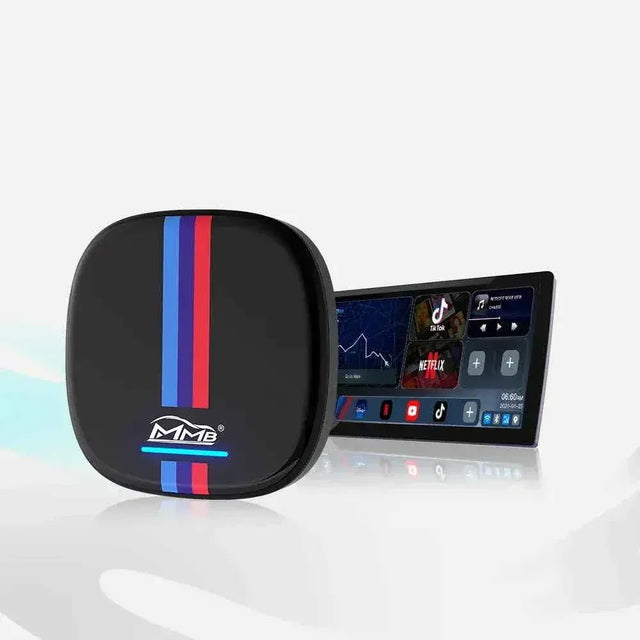
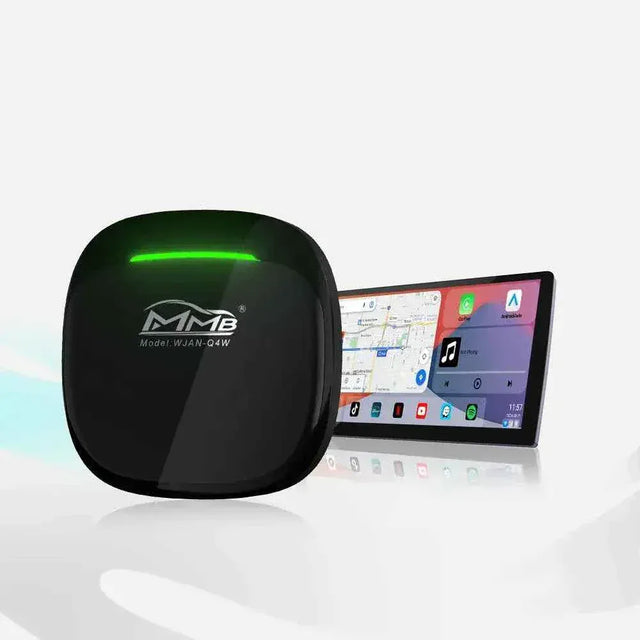
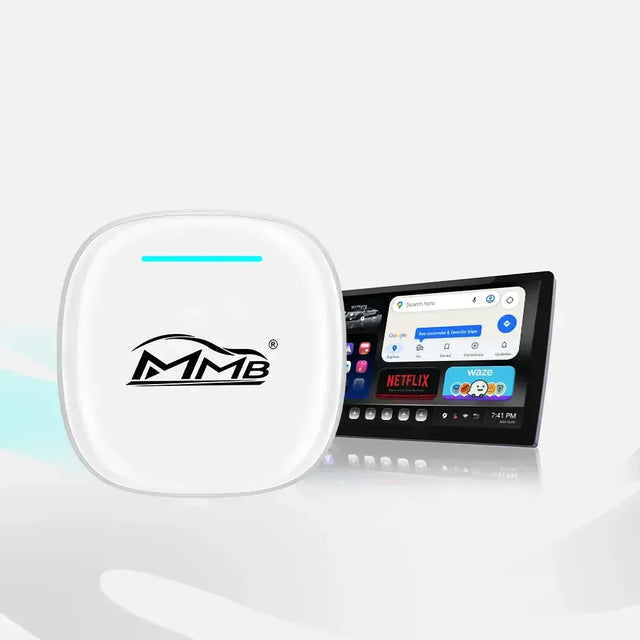
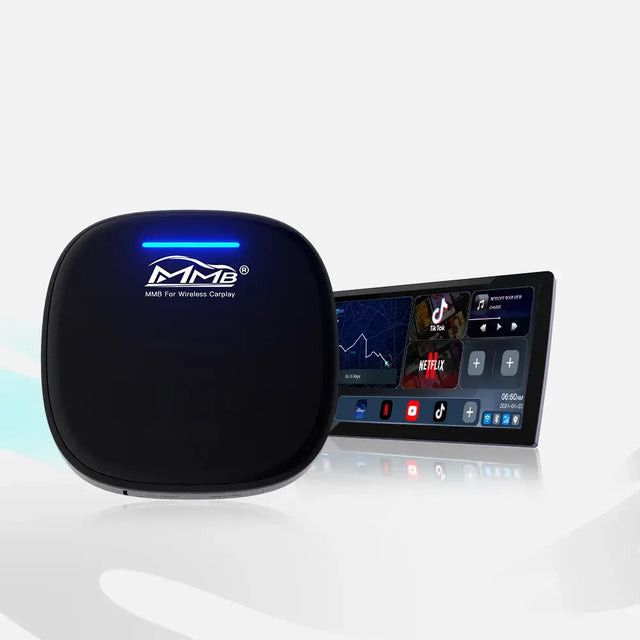
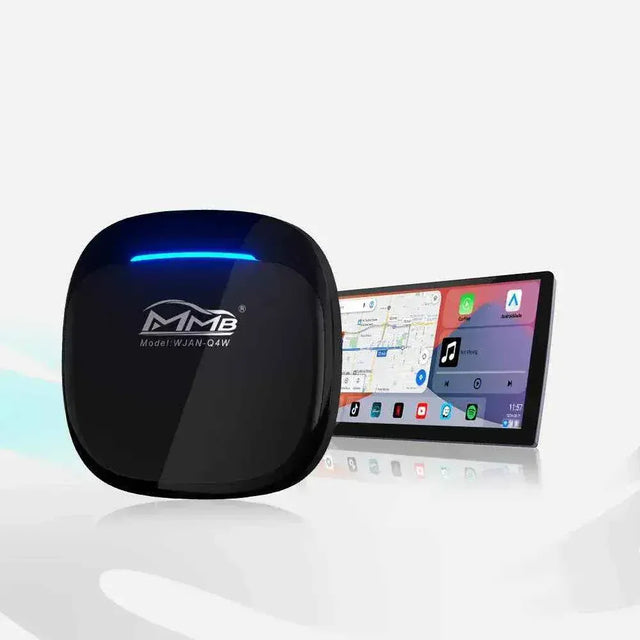
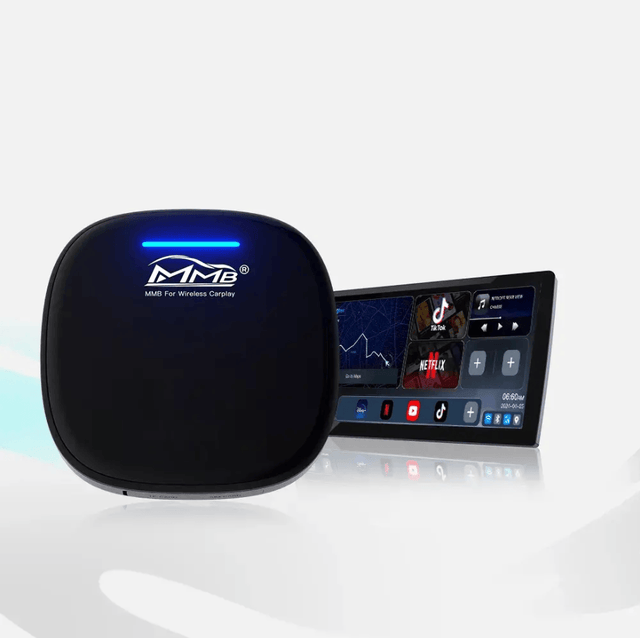
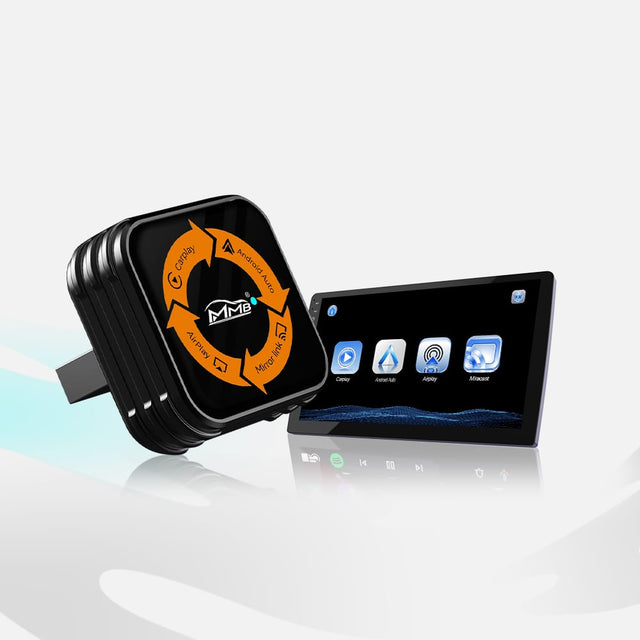
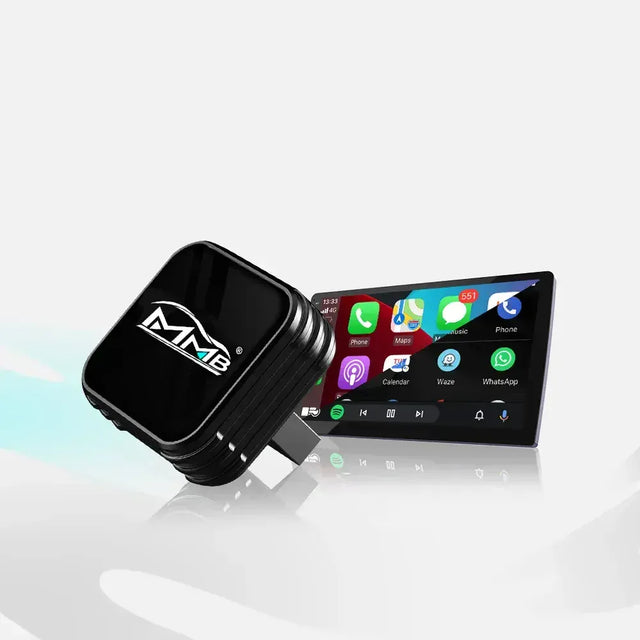
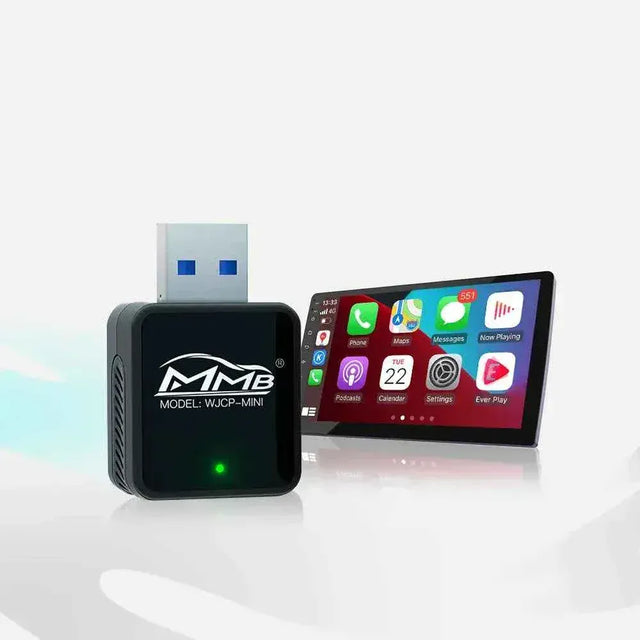
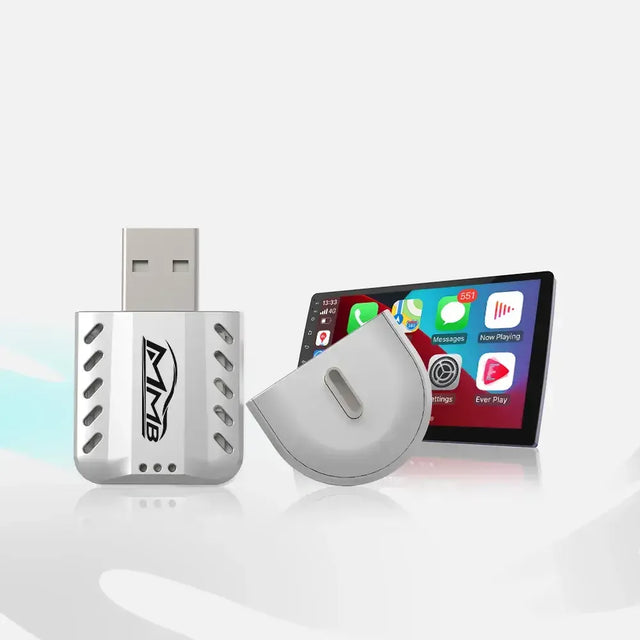
Possibly, if your car and screens meet the necessary conditions. The MMB Max 5.0 product page lists versions with and without HDMI. It advises choosing the HDMI version when connecting an external display with HDMI input, such as a rear-seat monitor.
However, this does not establish that Max 5.0 will always show a movie on the rear screen while the front display independently shows navigation. Its advertised split-screen function should not be mistaken for guaranteed independent front-and-rear video output. Confirm the exact display behavior with MMB for your vehicle before ordering.
There is a second compatibility condition: Max 5.0 is listed for compatible cars with factory wired CarPlay, and its product page says it is not applicable to BMW models. If your vehicle has only wireless CarPlay, no working CarPlay, or a BMW system, do not assume this version is the right choice.
An MMB device may be relevant after you have established what the original car supports. It should not be the first thing you buy while the rear screen input and front-screen behavior are still unknown.
What If the Rear Screen Has No HDMI Input?
You still have options, but they may be different from a CarPlay accessory. Your factory rear entertainment unit might accept another supported input or have its own playback features. Alternatively, a separate passenger device may be simpler than trying to integrate with a closed factory display.
That answer may not sell you a car accessory today, but it can save you from ordering a device that has nowhere to send its picture. The goal is a setup that works for your family, not a collection of adapters that each solve a different problem.
What to Send Before Asking About Compatibility
If you want MMB to assess your setup, send clear evidence rather than only your vehicle’s model year:
- Car make, model, year, and sales region
- A photo of the front infotainment home screen
- A short video showing whether factory CarPlay uses a cable or connects wirelessly
- Photos of the rear screen, its source menu, and any labeled video inputs
- The name or model of the factory rear entertainment system, if available
- A description of the exact result you want: navigation in front and a different video source in back
Then ask one direct question: “Can this specific product and version keep navigation on my front display while sending video to my rear display in my car?” The answer needs to address both screens, not just whether an HDMI connector exists. You can send those details through MMB technical support.
Keep the Driver’s Display for Driving
The purpose of a rear entertainment setup is to serve passengers without competing for the driver’s attention. Do not use a video displayed where the driver can watch it while driving. The U.S. National Highway Traffic Safety Administration identifies interaction with entertainment and navigation systems as potential distractions.
Set up the children’s content before departure or let a passenger manage it. Keep navigation and driving information available up front. If the only working arrangement puts a movie on the driver’s center display, it does not solve the problem this article set out to address.
The Bottom Line
A rear screen is the start of a family entertainment setup, not proof that every video source will work with it. First identify its input. Next test whether the front and back displays can use different sources. Then check audio routing and the compatibility requirements of any device you are considering.
Only after those answers are clear should you choose a product. That way, your purchase is based on what your vehicle can actually do, and the next road trip can be about getting there rather than troubleshooting screens.
FAQ
Why does my car’s rear screen work with a DVD but not my phone?
The rear entertainment system may accept the factory disc player as a source without accepting video from your phone. Check its source menu and manual for supported external inputs.
Will an HDMI cable alone let my kids watch video in the back?
Only if there is a compatible video output on the source device and a compatible HDMI input on the rear display. A cable cannot add an input the car does not have or create independent front-and-rear display control.
Can I use navigation on the front screen while video plays in the back?
Some vehicle and source combinations may allow it, but it is not guaranteed by the presence of two screens or an HDMI port. Confirm independent display behavior for your exact vehicle and device.
Does MMB Max 5.0 have HDMI output?
MMB lists both HDMI and non-HDMI regional versions. Choose only after confirming your vehicle’s factory CarPlay type, the rear display’s input, and the output behavior you need.
Is this the same as watching video through CarPlay?
No. Factory CarPlay app support, supported parked-video features, an AI Box’s A
BYD Wireless CarPlay AI Box: Worried It Won’t Work? Check This First
CarPlay Wrong Location? Find the Cause Before You Replace Anything
Related Posts

BMW CarPlay Disconnecting at the Same Place? Find Out Why Before You Buy a Fix

BMW CarPlay Apps Missing? Why Your Favorite App Is Not on the Screen

BMW CarPlay Siri Not Working? 7 Fixes for a Frustrating Issue

CarPlay Wrong Location? Find the Cause Before You Replace Anything

BYD Wireless CarPlay AI Box: Worried It Won’t Work? Check This First

MMB BMW AI Box Before and After: What Actually Changes on Your Factory Screen?