
How to Enable Wireless CarPlay in BMW
Wireless Apple CarPlay makes it easy to use maps, music, calls, and messages without plugging in your iPhone. If your BMW supports it, setup takes only a few minutes. If it doesn’t, there are still reliable ways to upgrade.
What is wireless CarPlay?
Wireless CarPlay connects your iPhone to BMW iDrive using Bluetooth and Wi-Fi. Once it’s paired, it usually reconnects automatically when you start the car—no cable needed.
Not every BMW supports wireless CarPlay. Some models support CarPlay only via USB, and others may not have CarPlay enabled from the factory.
Step 1: Check if your BMW supports wireless CarPlay
Start with a quick check inside iDrive:
- Open Settings (or Communication) on the iDrive screen
- Go to Mobile Devices / Connections
- Look for an option like Apple CarPlay or Connect New Device → Apple CarPlay
If iDrive only shows CarPlay when a USB cable is plugged in, your vehicle likely supports wired CarPlay only.
Step 2: Enable wireless CarPlay (if your BMW supports it)
Follow these steps on your iPhone and iDrive:
-
1
Turn on Bluetooth and Wi-Fi on your iPhone.
-
2
On iDrive, open Mobile Devices and choose Connect New Device.
-
3
Select Apple CarPlay.
-
4
Confirm the pairing code on both your iPhone and the iDrive screen.
-
5
Accept prompts on your iPhone (CarPlay permissions) to finish pairing.
After the first setup, your BMW should reconnect to wireless CarPlay automatically when you start the car.
Common wireless CarPlay issues (and quick fixes)
If CarPlay doesn’t show up or disconnects often, try the basics first:
- Restart your iPhone and the car (turn ignition off, wait a minute, then restart).
- Forget the device in iDrive and iPhone Bluetooth settings, then pair again.
- Update to the latest iOS version.
- If available, update BMW iDrive software.
- On iPhone: Settings → General → Transfer or Reset iPhone → Reset → Reset Network Settings.
If your BMW does not support wireless CarPlay
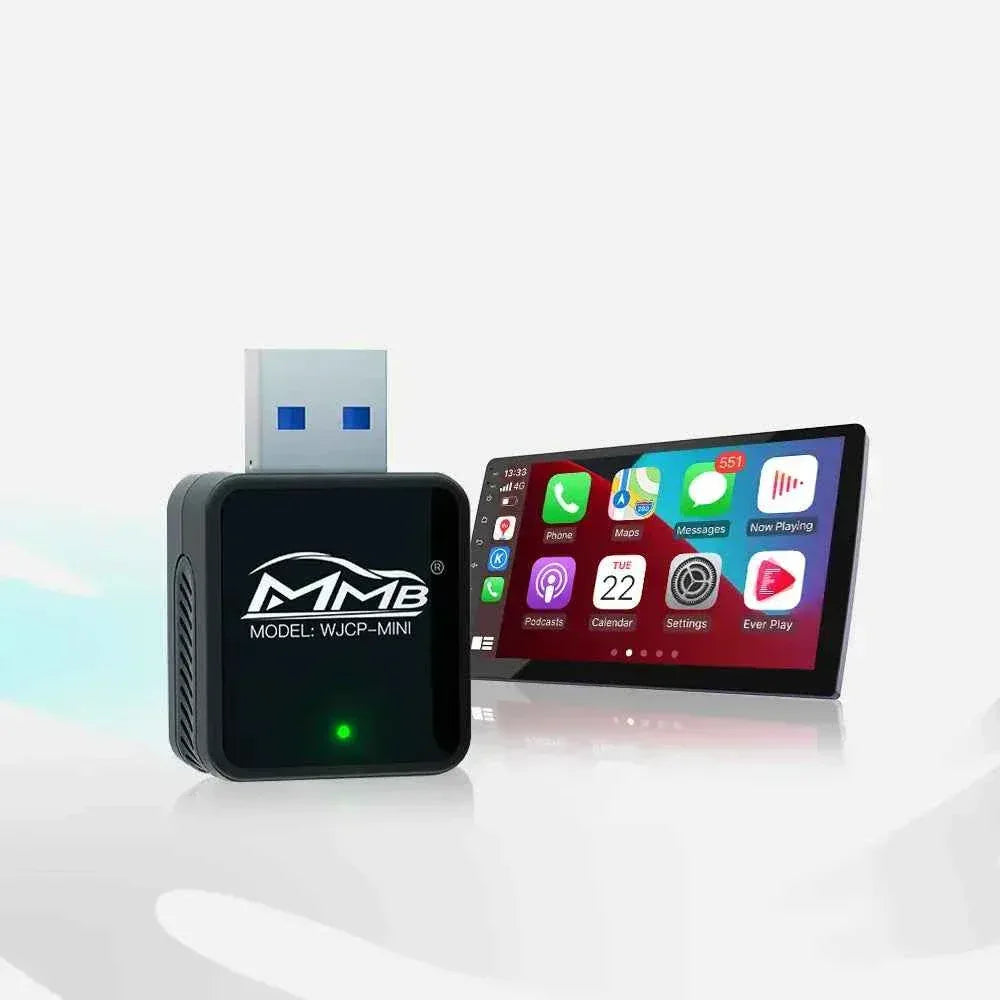
If your BMW only supports wired CarPlay (or CarPlay isn’t enabled), you still have options. A practical upgrade for many BMW and MINI drivers is a BMW-compatible AI box that adds wireless connectivity and more.
Upgrade option: Add wireless CarPlay (and more) with a BMW AI Box
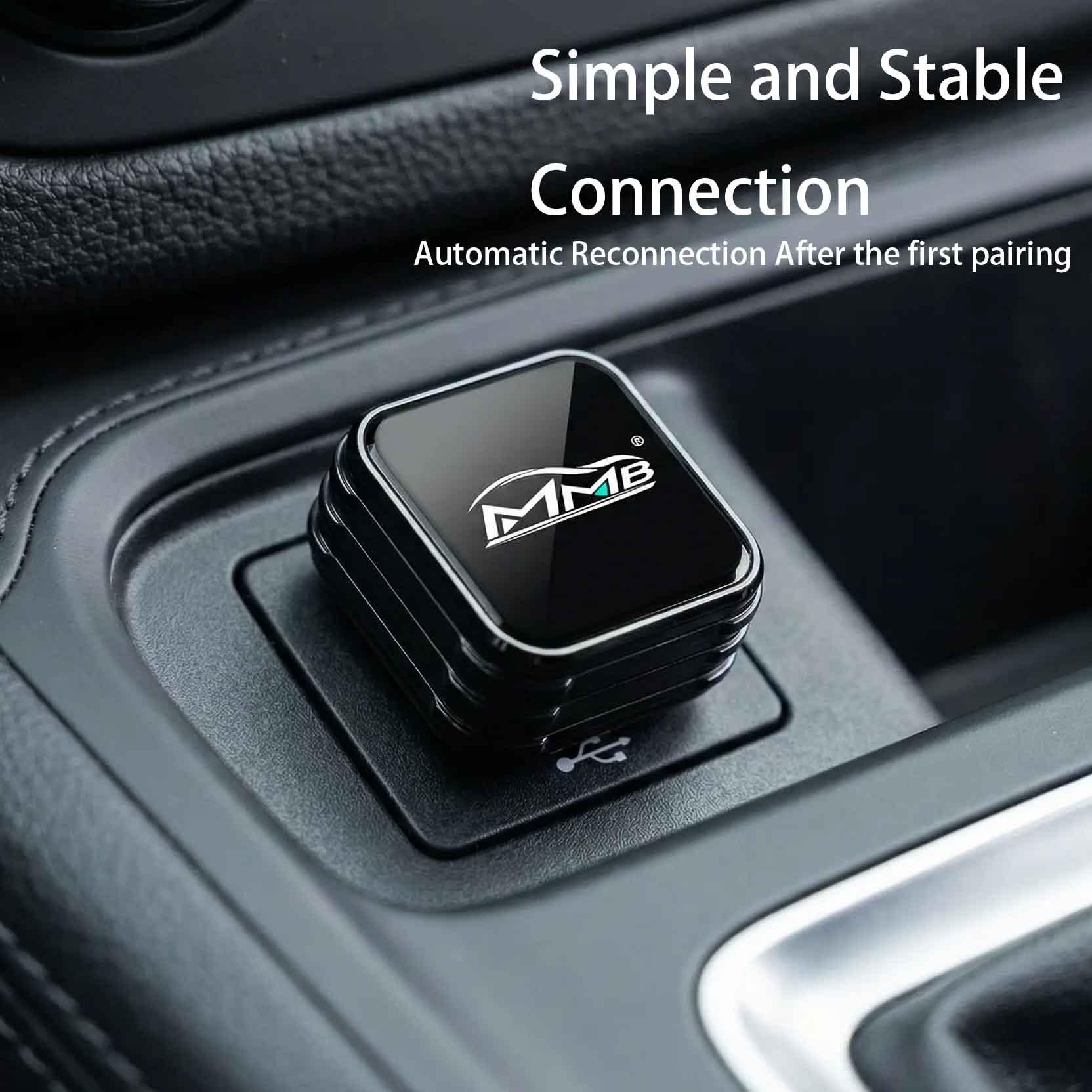
A BMW AI box connects to your car’s USB port and can enable a broader set of features, depending on your setup:
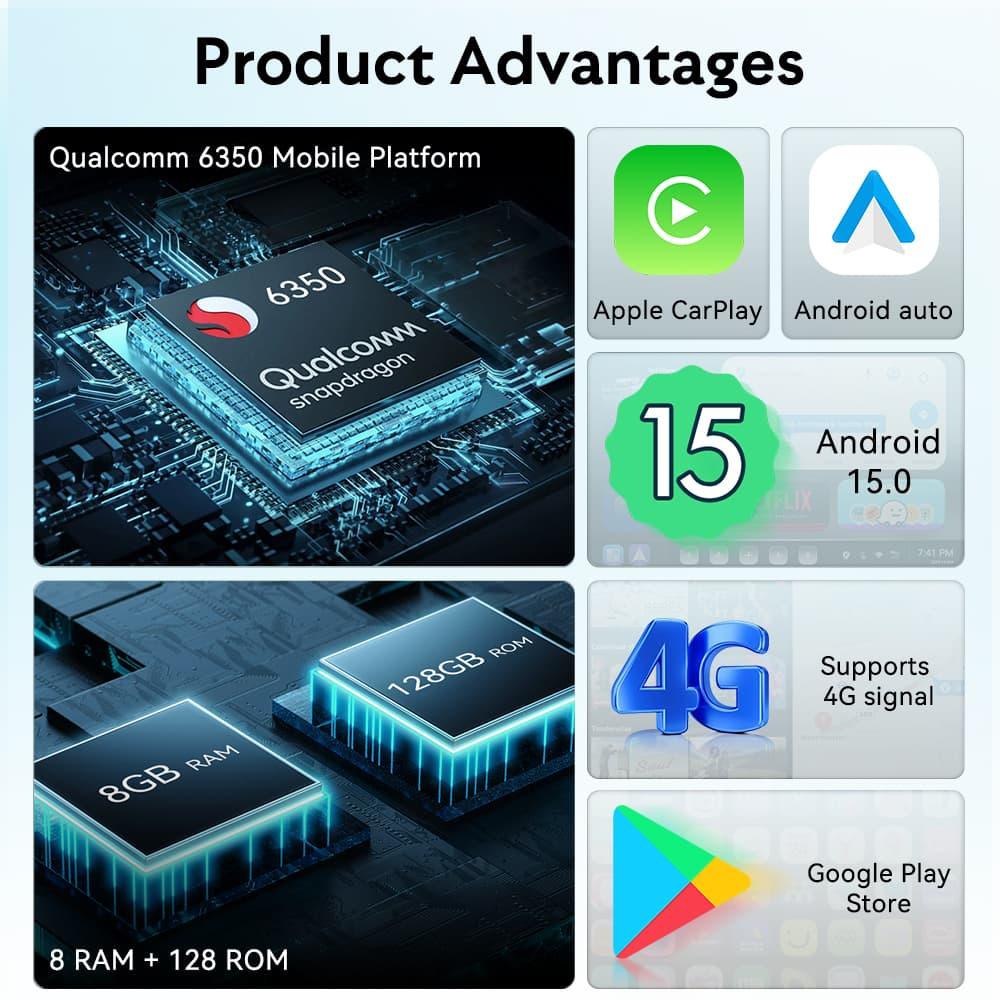
- Wireless Apple CarPlay
- Wireless Android Auto
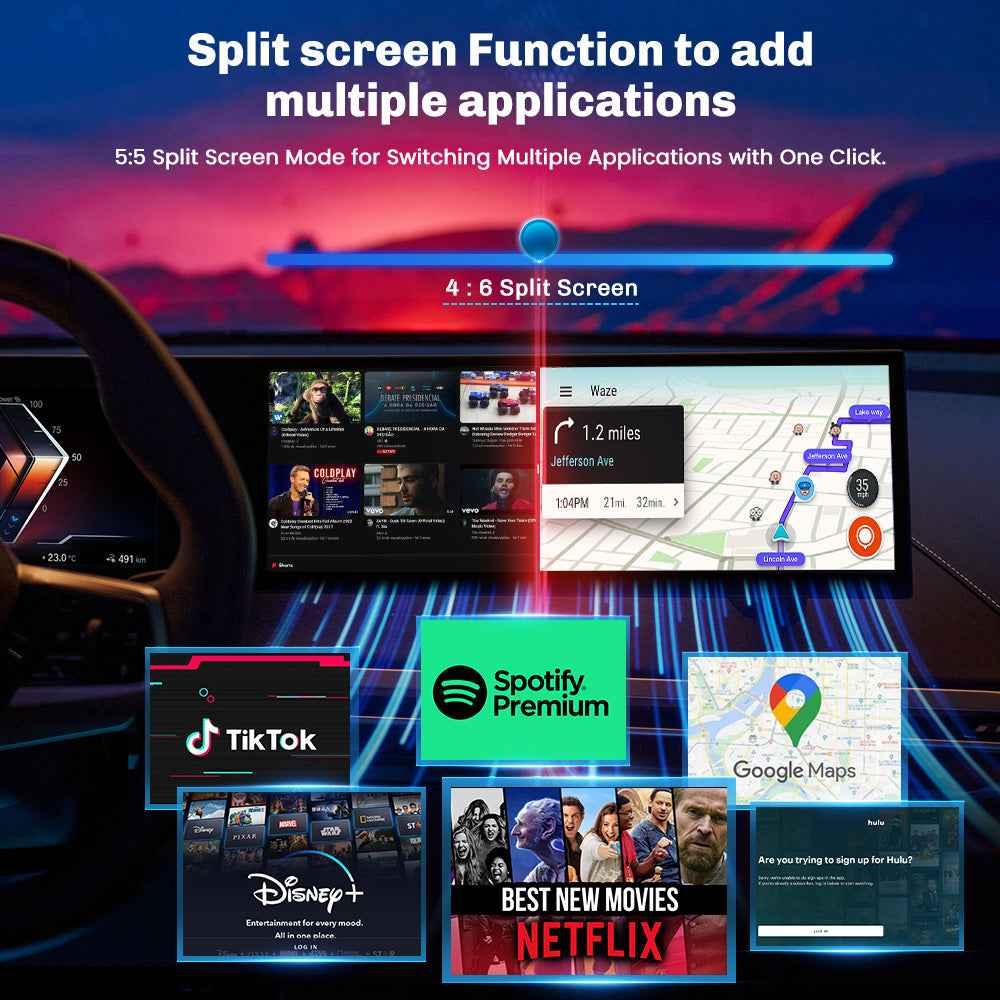
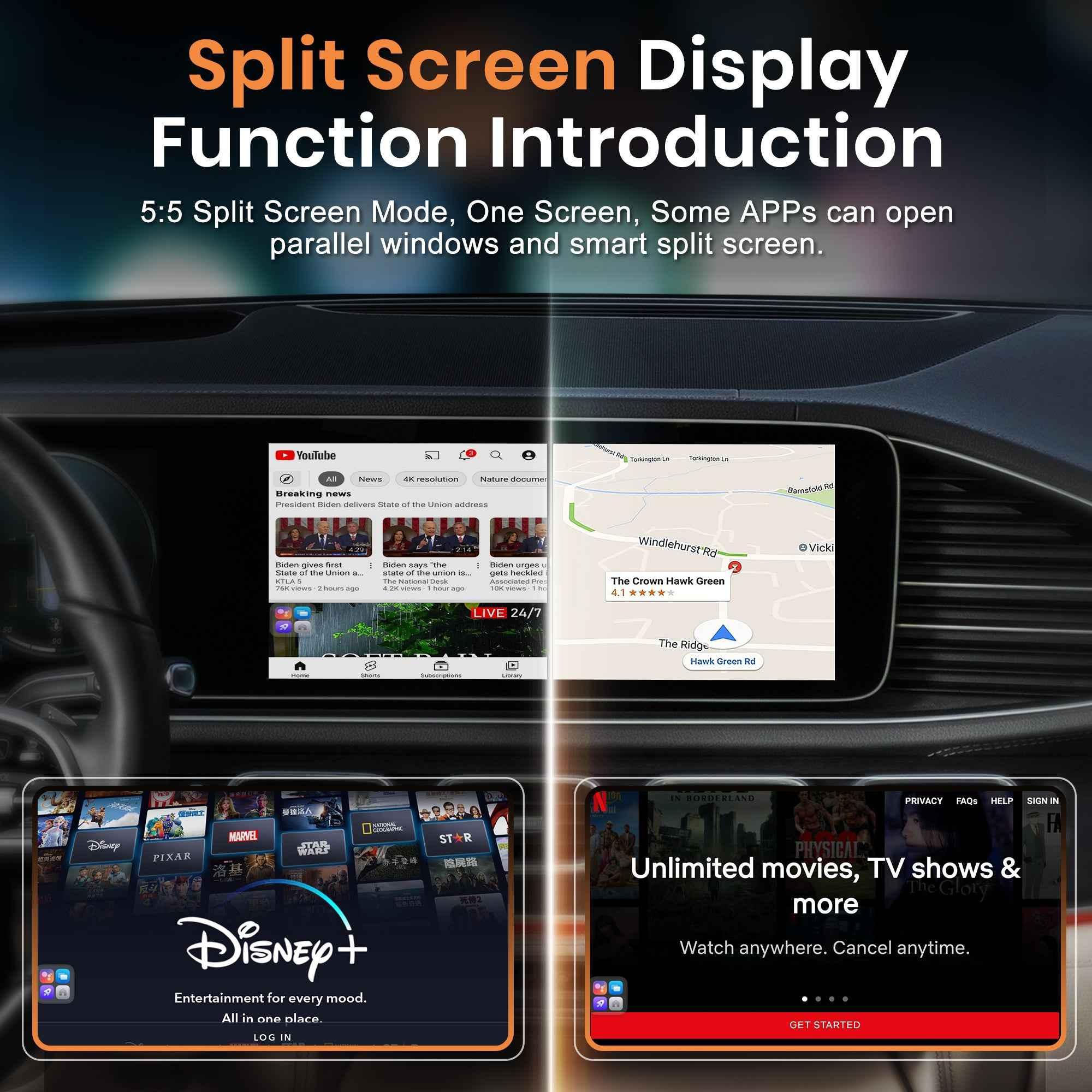
- An Android-based system with access to apps like Netflix and YouTube
- Google Play Store support for downloading third-party apps
Recommended for BMW & MINI: MMB BMW AI Box
If you want wireless CarPlay plus Android Auto and in-car entertainment, the MMB BMW AI Box is a BMW/MINI-focused option designed to integrate smoothly with iDrive.
Product link: https://carplaymmb.com/products/mmb-bmw-multimedia-box
Wireless vs. wired CarPlay: what changes in daily use?
| Feature | Wired CarPlay | Wireless CarPlay |
|---|---|---|
| Cable required | Yes | No |
| Auto connection | Not always | Usually yes |
| Convenience | Good | Excellent |
| Interior clutter | More | Less |
Final thoughts
If your BMW supports wireless CarPlay, enabling it is usually a quick pairing process through iDrive. If it doesn’t, upgrading with a BMW-focused AI box can be a straightforward path to wireless CarPlay—plus Android Auto and a more flexible infotainment experience.
Can I Add Wireless CarPlay to My Car? Everything You Need to Know
Is Wireless CarPlay Worth It in 2026?
Related Posts

Afraid of BMW MMB Box Battery Drain? What BMW Drivers Should Know Before Parked Streaming

Worried MMB Too Complicated? 7 Easy Things First-Time Users Should Know

Worried Your Car Screen Is Too Old for MMB? 7 Signs It May Still Work

Worried About MMB Mobile Hotspot? 7 Things Drivers Should Know Before Streaming

Parked Car Between Appointments: 7 Reasons MMB Makes Waiting Feel Better

Long Drive Alone: Why the Car Feels Different When Nobody Is Beside You

MMB AI Box Buying Guide: 7 Checks Before You Order